
How to Use Every Seed Audio 1.5 Mode: Create, Dialogue, With Video, Dub and Stems
A step-by-step guide to all five Seed Audio 1.5 modes on Fuzion: what goes in, what comes out and how to prompt, with example prompts, audio settings, file limits and how to pick the right mode.
 Fuzion
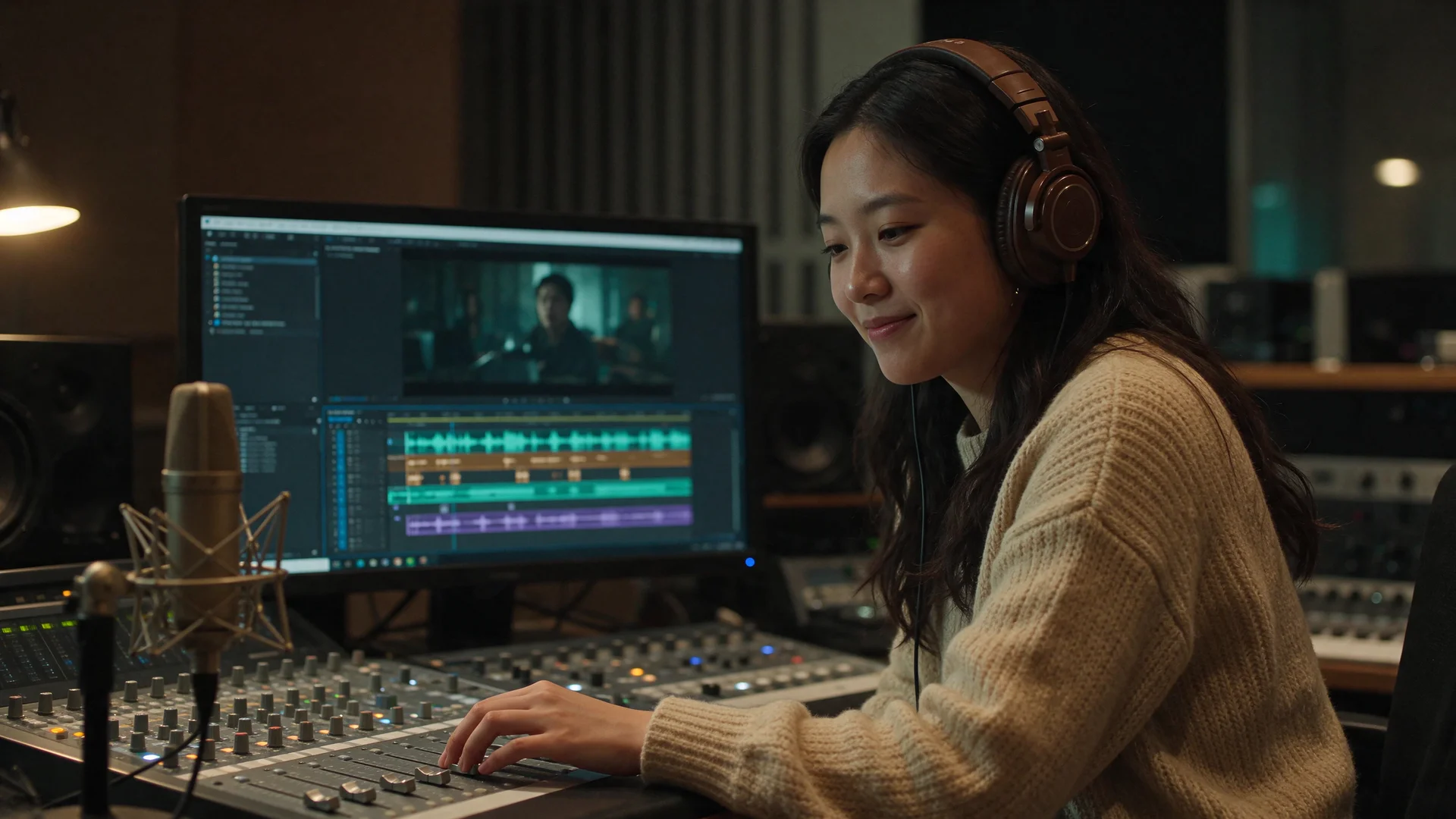
Seed Audio 1.5 does far more than read text aloud. It can write a whole sound scene, voice a conversation between several people, perform new audio in time with a video, dub a video into another language, and split the voice, effects and music out of a mixed file. This guide walks through all five modes on Fuzion step by step: what goes in, what comes out, and how to write prompts that sound the way you want. New to the model? Start with the overview, What is Seed Audio 1.5.
Seed Audio 1.5 is not available on Fuzion yet, but it is coming soon. Read this guide now and you will be ready to use it the day it opens.
The 5 modes of Seed Audio 1.5 at a glance
| Mode | Input | Output | Good for |
|---|---|---|---|
| Create | A description, plus up to 6 audio references or one image | One mixed audio file with dialogue, effects and music | Ad spots, audio drama, narration |
| Dialogue | Up to 6 character cards, each with a name, a line and an optional voice clip | A multi-voice conversation in one file | Podcasts, scripted scenes, two-person clips |
| With video | One reference video, up to 6 voice clips, optional lines | Audio timed to the picture | Re-voicing a clip, replacing an actor's voice, adding sound to a silent clip |
| Dub | One source video and a target language | The video dubbed into the new language | Localising Chinese or English clips |
| Stems | One audio file and the tracks you want | Separate files for vocals, effects and music | Swapping music, clean dialogue for subtitles, remixing |
Once it opens, go to the audio tab on Fuzion, choose the Seed Audio 1.5 model and pick a mode from the switch at the top of the composer. Every mode uses the same Generate button, and the results land in your library like any other job.
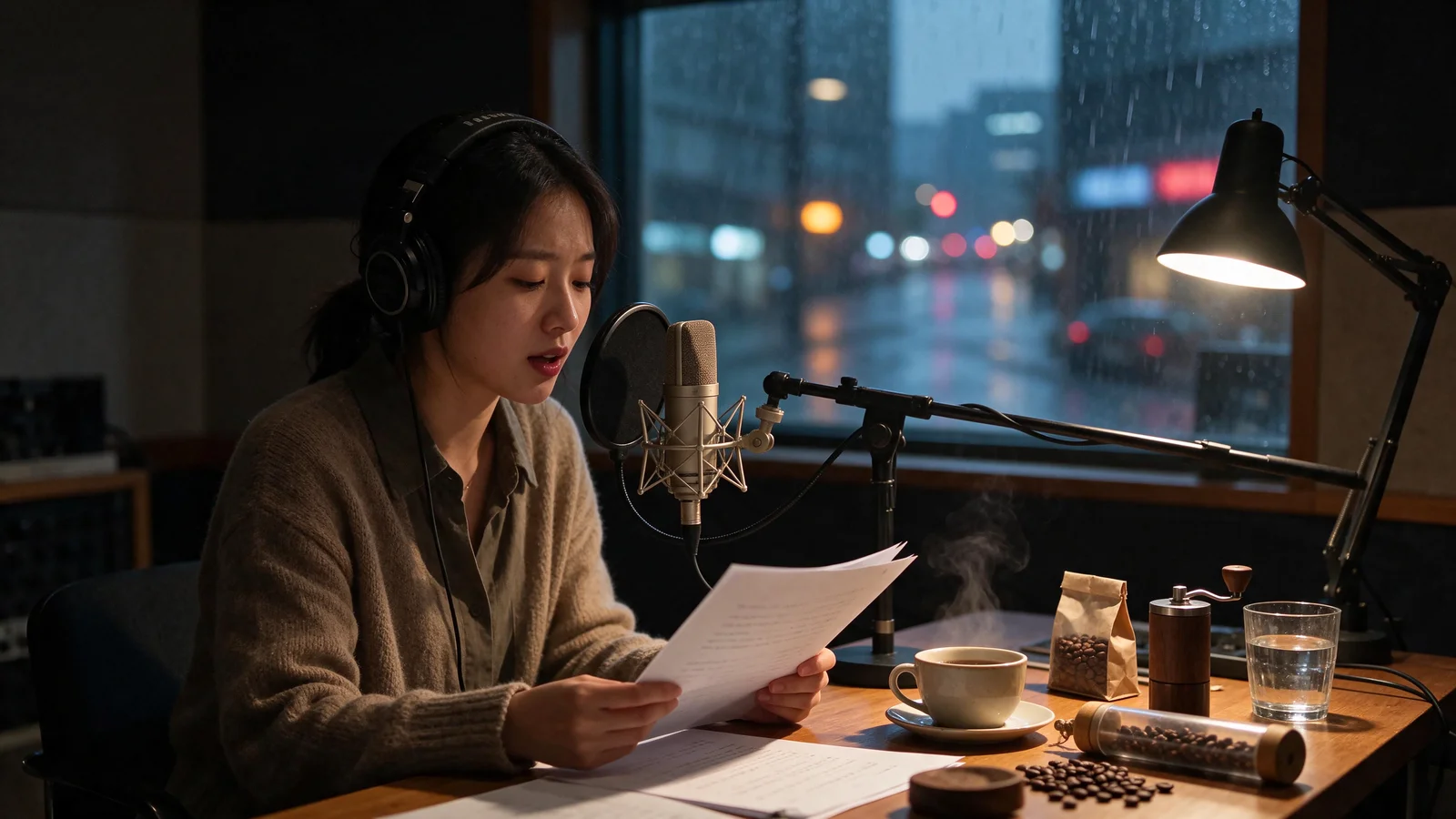
Mode 1: Create (write what you want to hear)
The main mode. Describe everything you want to hear in one box: the lines, who speaks them and how, the sound effects and the music. The model returns one finished, mixed audio file.
Steps
Choose Create.
Write your description, up to 8,000 characters.
To steer the voice, press Add Reference and pick one of:
Add audio: up to 6 clips to clone a voice or set the mood. Refer to them in the description as @Audio1, @Audio2 and so on.
Add image: one picture the model uses to shape the voice. A photo of a kind grandmother gives a soft, older female voice.
Audio or image, not both.
Adjust speed, loudness, pitch and file format (wav, mp3, pcm, ogg_opus) if you like, then press Generate.
How to write a description that works
Put spoken lines in quotes, in the language they should be spoken.
Describe each speaker fully the first time: gender, age, voice quality, accent, mood and pace. After that, use the same name.
Say clearly when effects and music happen and how loud they are, for example soft guitar under the whole spot.
Use timestamps in the form [start:end] when you need second-by-second timing.
Always include speech: this mode is not for pure music or sound effects. For music alone, use one of the music models on Fuzion.
Example: a 15-second café spot with English directions and Thai lines.
[0.0s:15.0s] Soft, warm acoustic guitar music plays quietly under the whole spot.[0.0s:1.5s] Coffee beans pour into a grinder, then a short grinding burst.Female 1 (woman in her late twenties, clear gentle voice, standard Thai accent, relaxed morning mood) speaks slowly and warmly: [1.8s:5.0s] "เช้านี้ ขอเริ่มวันแบบช้าๆ หน่อยนะ"[5.2s:6.5s] Hot water is poured over a drip filter, a soft trickle.Male 1 (man in his thirties, deep friendly voice, standard Thai accent, smiling tone) answers playfully: [6.8s:10.0s] "กลิ่นแบบนี้ ใครจะไปรีบไหว"Female 1 laughs softly and says: [10.5s:13.5s] "กาแฟดีๆ สักแก้ว วันทั้งวันก็ดีขึ้น"[13.5s:15.0s] The guitar ends on a bright chord with birdsong in the background.With a voice clip attached, replace the speaker description with the clip, for example Female 1 (voice from @Audio1) speaks slowly and warmly, and the model uses that voice.
Mode 2: Dialogue (several people, one voice each)
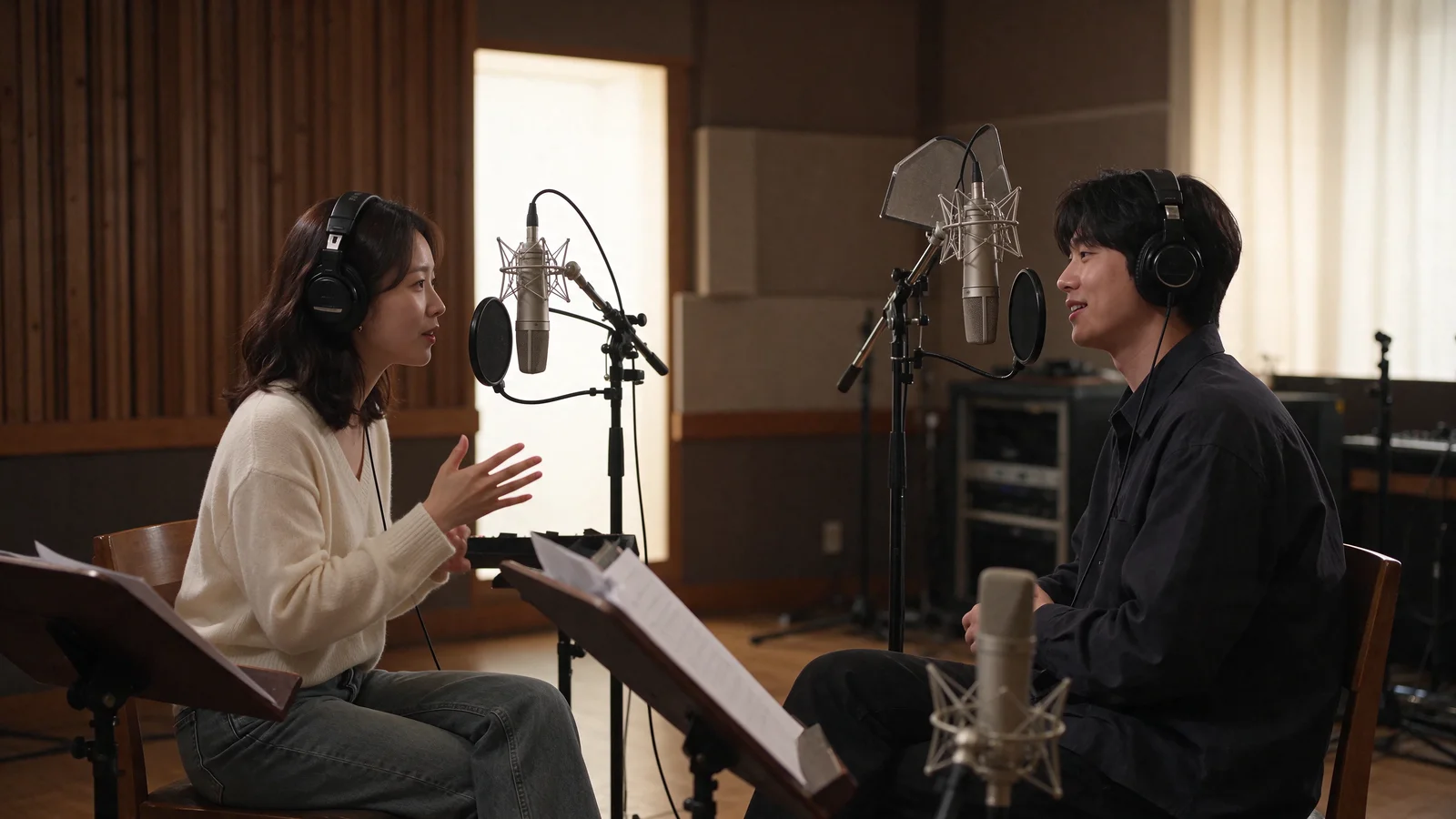
For scenes with several characters. Instead of one long paragraph, you fill in a character card for each speaker, up to 6. This keeps each voice attached to the right person.
Steps
Choose Dialogue.
In the first card, enter the character's name, their line and an optional 2–30 second voice clip. Without a clip, the model picks a voice.
Press Add character for the next card. Drag to reorder: card order is speaking order.
Use Notes for the setting, for example a busy café.
Set the voice options and format, then press Generate.
Example cards
Notes: Two friends chatting in a cosy café, light background chatter and clinking cups.Card 1 Name: Min Line: "Did you watch the clip I sent? I voiced the whole thing myself."Card 2 Name: Jo Line: "I did. I thought you'd hired a voice actor."Card 3 Name: Min Line: "Nobody. It's all AI."The same character can speak more than once: just reuse the name on a new card. All voice clips together can run up to 3 minutes.
Tip: a good voice clip is one person speaking, with no music or noise, 10–20 seconds long, in a mood close to the line they will say.
Mode 3: With video (audio timed to the picture)
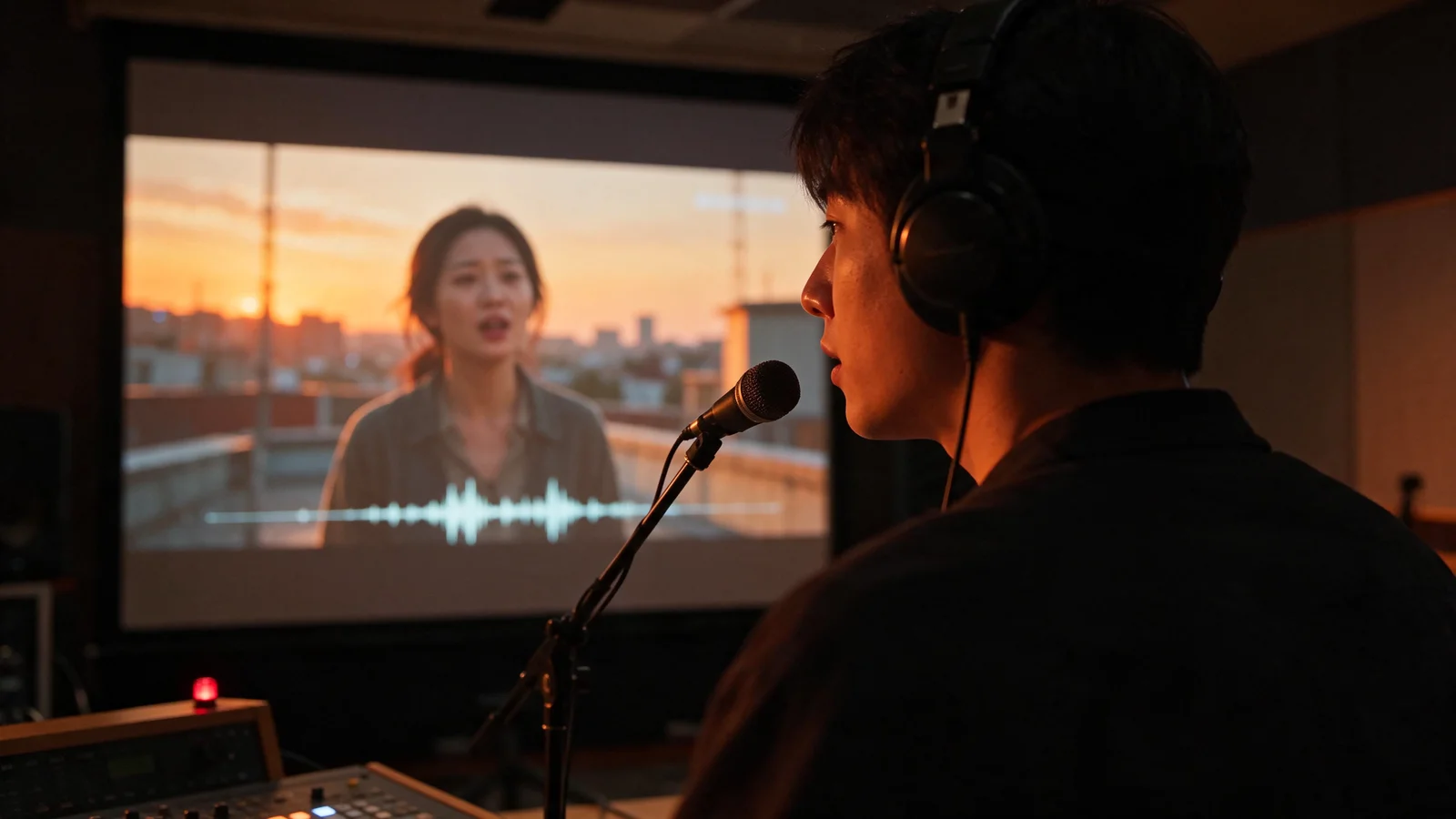
One video sets the timing and the model creates new audio that fits the picture. Voice clips set the timbre. Use it to re-voice a clip that already has speech, or to add sound to a silent one.
Steps
Choose With video.
Pick one reference video, 4 seconds to 6 minutes, up to 1GB.
Add up to 6 voice cards, each with a voice clip and, if you want, new lines.
Use Notes for the performance you want. Left empty, the model re-performs the original lines with the original timing in the voice from your clips.
Press Generate and drop the result under the video in your editor.
Example notes for a clip of an actor speaking on a rooftop
Fully reproduce the lines and pacing from the reference video, re-perform them with the voice from @Audio1, warmer and more hopeful, and keep every line aligned with the lip movement and the cuts in the picture.Good to know
Full HD or smaller works best. 4K frames are larger than the model accepts, so Fuzion scales them down before sending.
Width divided by height must be between 0.4 and 2.5, which covers 9:16, 16:9 and 21:9.
Frame rate 12–60 fps.

Mode 4: Dub (translate a video's speech)
The simplest mode. No script at all: add a Chinese or English clip, choose a language, and the model transcribes, translates and re-voices the whole clip.
Steps
Choose Dub.
Pick one source video, 4 seconds to 6 minutes.
Source: Chinese, English, or Detect.
Target: one of 30 languages, including Thai.
Dialogue enhancement: off, low, medium or high, to lift the new voice above the background.
Glossary: up to 12 pairs that must always translate a fixed way, such as brand names, people's names or jargon.
Press Generate.
Example glossary for a product review
Source: Fuzion Target: FuzionSource: credit Target: เครดิตSource: 火山方舟 Target: ModelArkAll 30 target languages: Thai, English, Chinese, Japanese, Korean, Indonesian, Vietnamese, Malay, Filipino, Hindi, Arabic, German, French, Italian, Spanish (Spain), Spanish (Mexico), Portuguese (Brazil), Portuguese (Portugal), Russian, Dutch, Polish, Turkish, Swedish, Finnish, Danish, Norwegian, Czech, Hungarian, Greek and Romanian.
Important: the source language must be Chinese or English. A Thai clip cannot be dubbed into another language in this mode.
Mode 5: Stems (split an existing file)
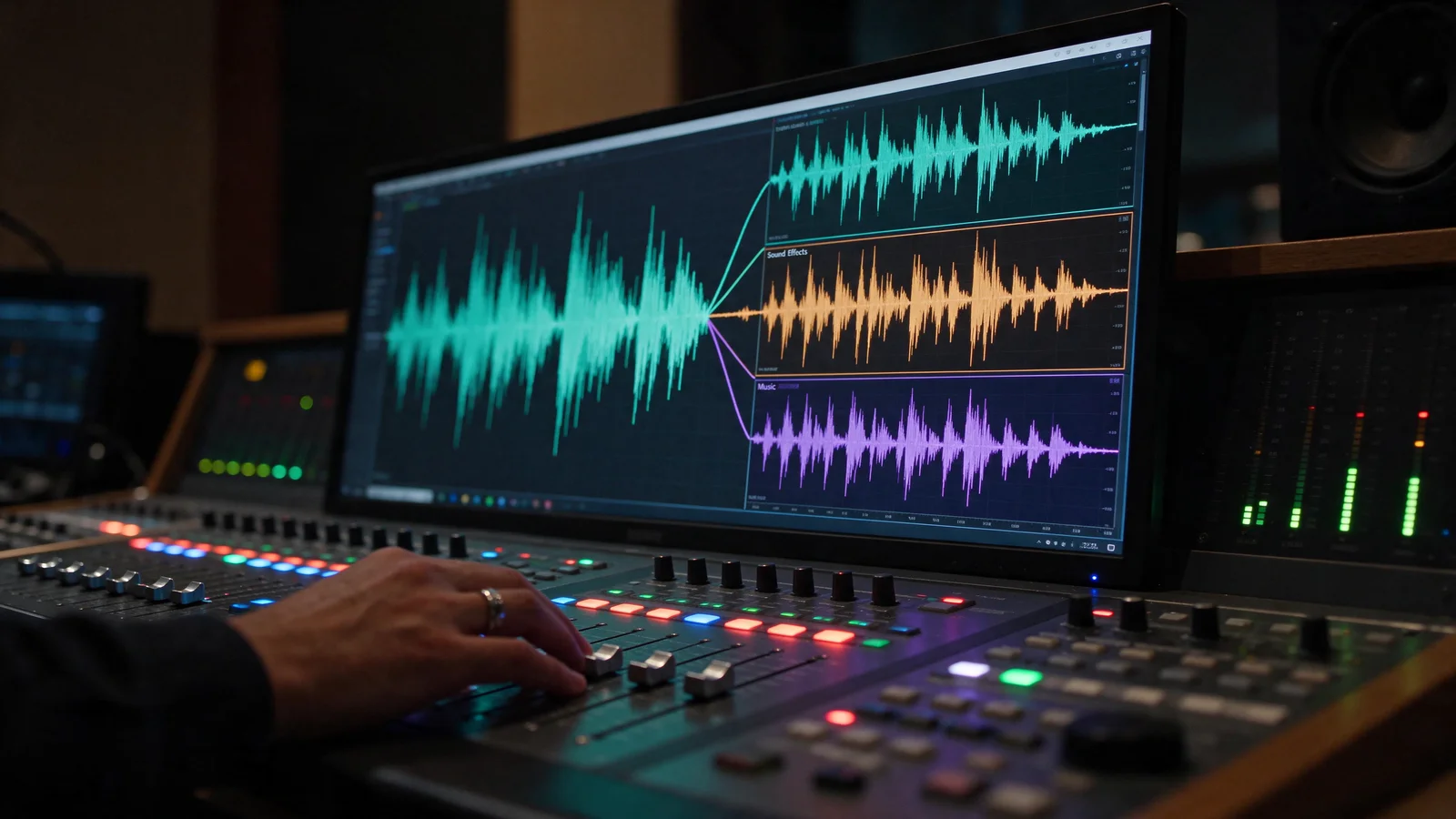
Got a file where everything is already mixed together? This mode splits it into vocals, sound effects and music, each as its own file with a name and a short description of what it contains. It creates nothing new; it only separates what is already there.
Steps
Choose Stems.
Pick the audio file to split, up to 6 minutes.
Tick the tracks you want: Vocals, Effects, Music (at least one).
Press Generate.
What it is useful for
Replacing the music in an old clip without touching the dialogue
Pulling clean speech out for subtitles
Ducking the music under speech and remixing in your editor
Keeping a clip's sound effects to reuse
Audio settings
| Setting | Options | Modes |
|---|---|---|
| File format | wav (default), mp3, pcm, ogg_opus | All |
| Sample rate | 8,000–48,000 Hz, default 44,100 (ogg_opus is 48,000 only) | All |
| Speed | Half speed up to 2x | Create, Dialogue, With video |
| Loudness | Half up to 2x | Create, Dialogue, With video |
| Pitch | 12 steps down or up | Create, Dialogue, With video |
For editing, wav at 44,100 Hz gives the best quality. To post or share straight away, mp3 is much smaller.
File limits
Voice clips: wav or mp3, up to 15MB each
Reference image (Create): one image, up to 10MB
Video (With video, Dub): 4 seconds to 6 minutes, up to 1GB, 12–60 fps
File to split: up to 6 minutes
Long jobs can take several minutes. Finished jobs appear in your library.
Which mode should I use?
Only an idea so far: Create
A script with several speakers: Dialogue
A video that needs new audio in the same language: With video
A Chinese or English video you want in another language: Dub
A mixed audio file you want to pull apart: Stems
FAQ
Can Create make music on its own?
No. Music and effects are welcome, but the piece must include speech. For pure music or sound effects, use a music or Sound Effects model on Fuzion.
Can I dub a Thai video into English?
Not yet. Dub accepts Chinese or English as the source language only, though Thai is available as a target.
How many voice clips can I add?
Up to 6 in Create, Dialogue and With video.
Can I use an image and voice clips together?
No. In Create you choose one or the other.
How is it different from Seed Audio 1.0?
1.5 accepts video, which adds With video, Dub and Stems, and takes more voice references. The prompting principles carry over; see the Seed Audio 1.0 prompt guide.