
OmniHuman 2.0 Guide: Make Talking Videos from One Image and Direct Gestures, Emotion and Camera
How to use OmniHuman 2.0 to turn one still image and an audio file into a lip-synced talking video: preparing image and audio, the prompt formula, sequencing actions, camera, emotion, focus, multiple people, animals and cartoons.
 Fuzion
OmniHuman 2.0 turns a single still image and an audio file into a video of someone talking or singing, with accurate lip sync, real facial expression, body movement and cinematic camera work. This version accepts prompts, so you can direct what the character does, where the camera goes and what happens in the background. This guide covers how to use it on Fuzion, from preparing your files to prompt-writing techniques.
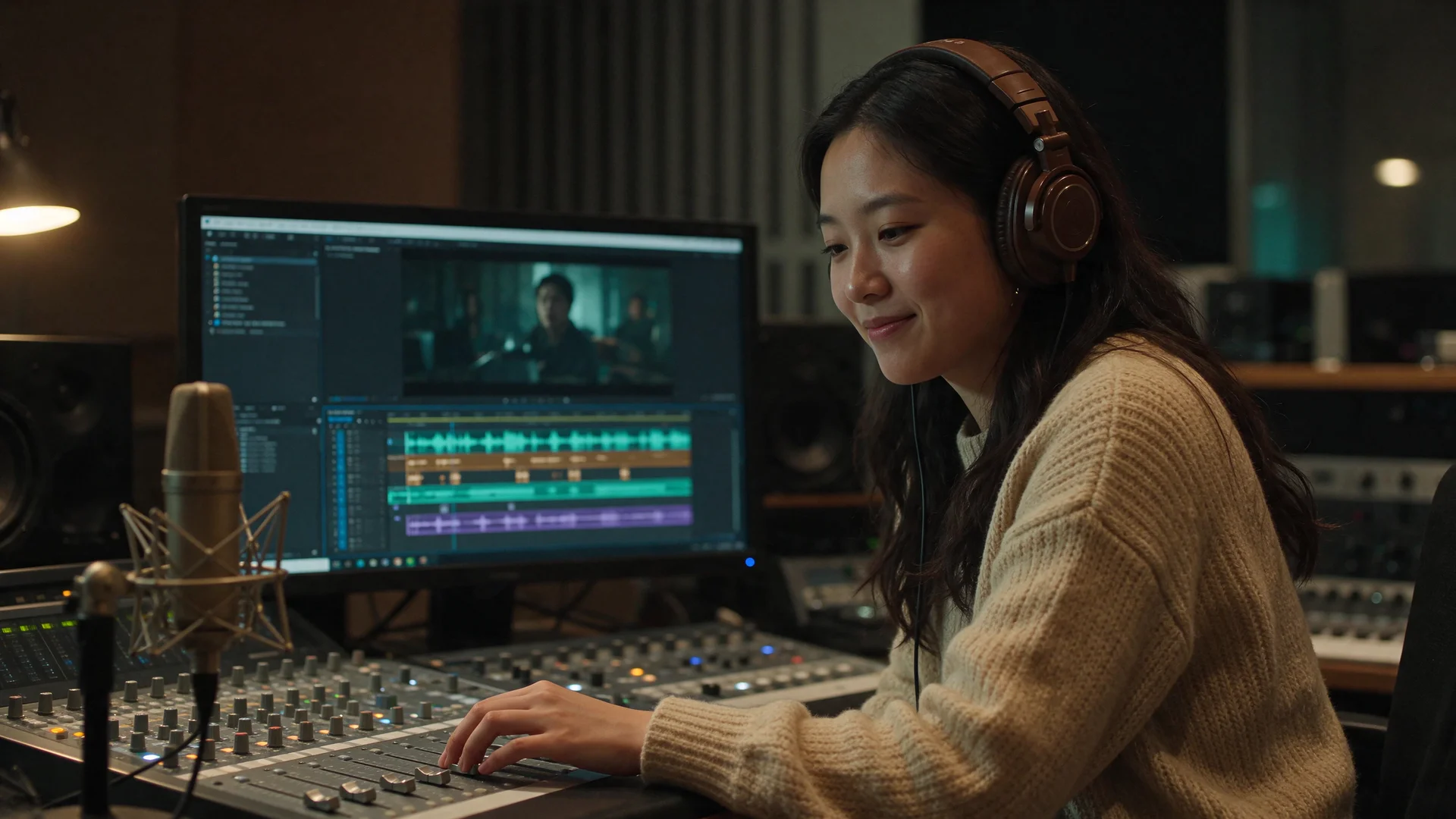
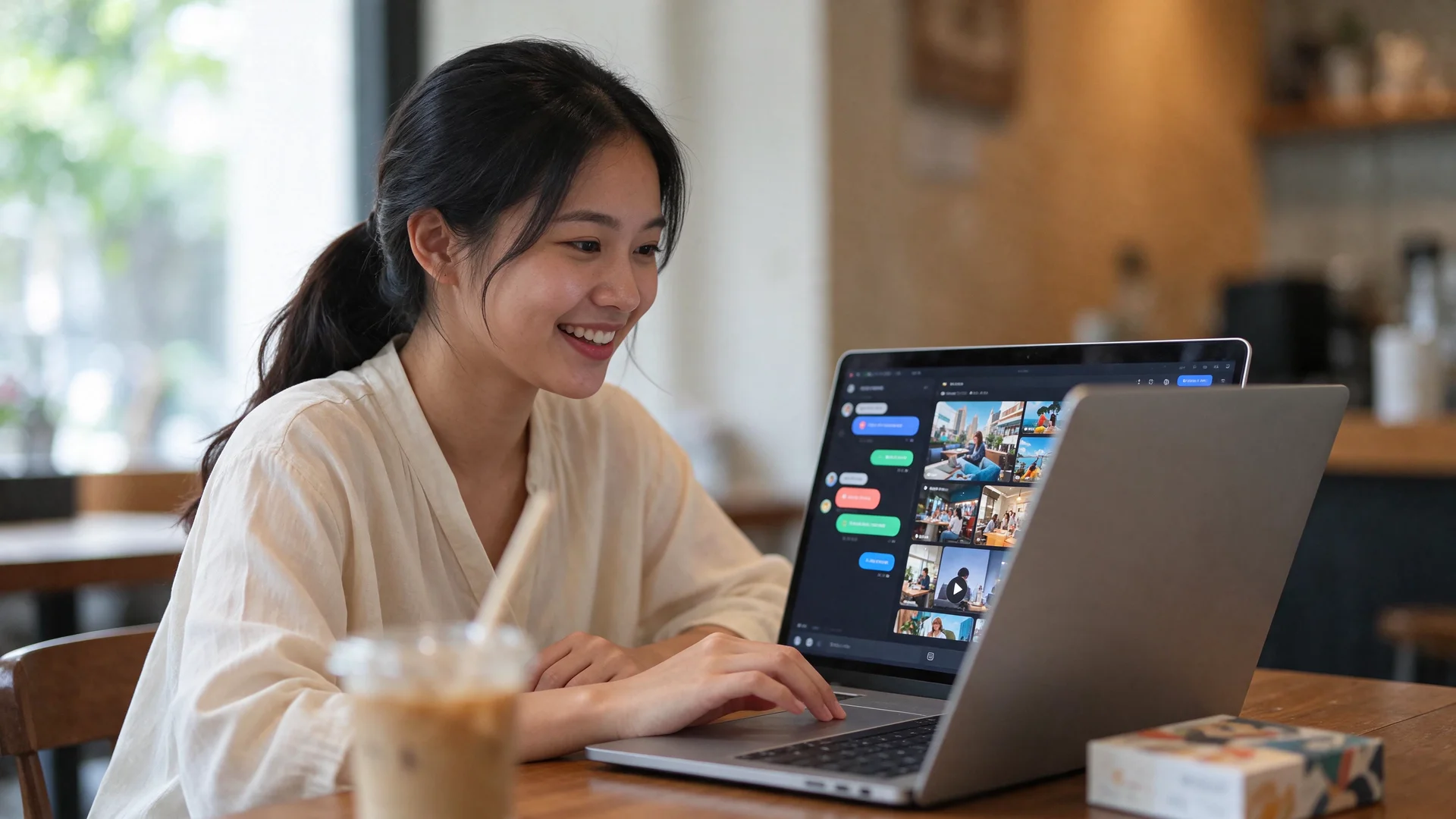
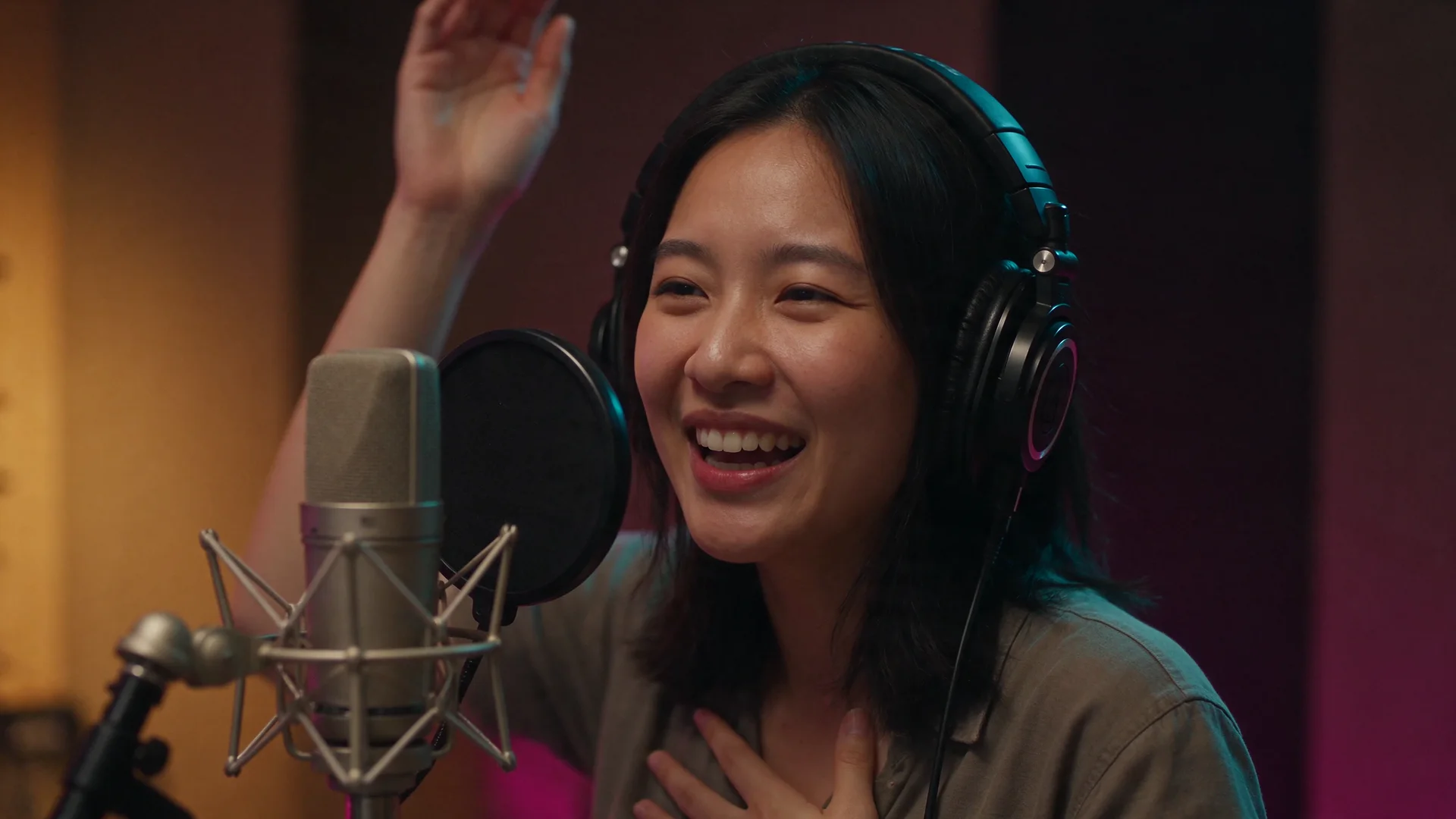
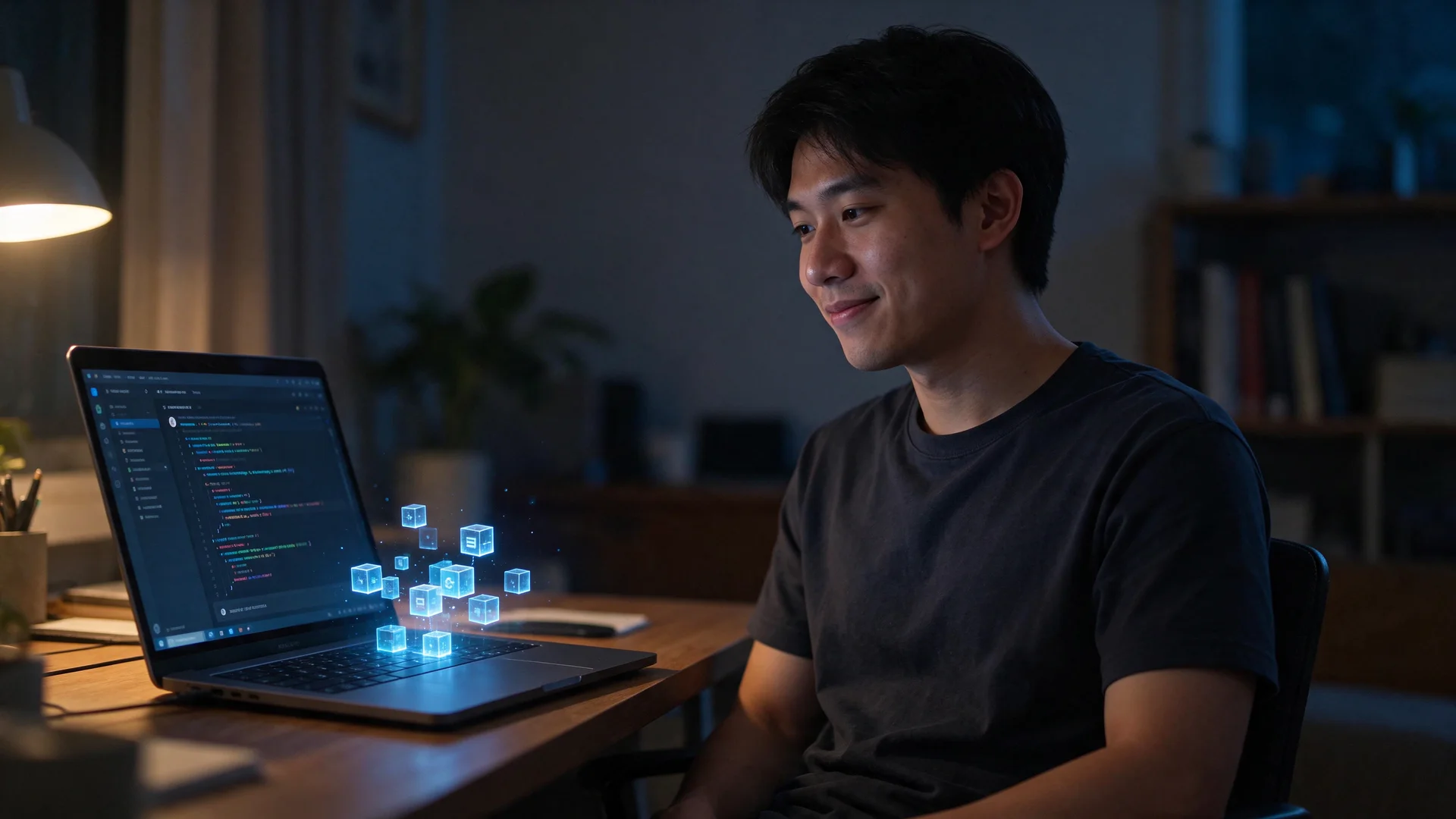
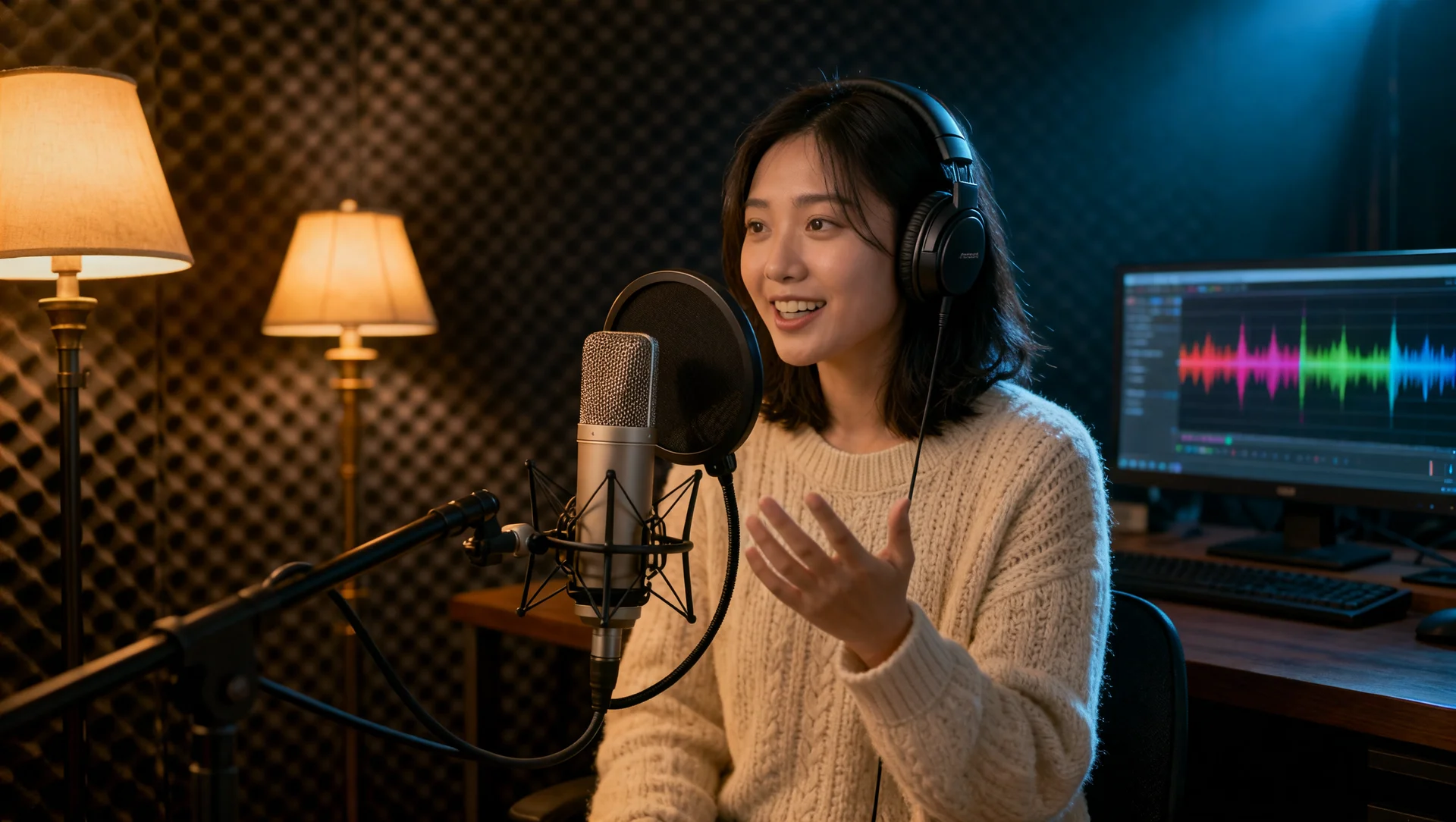
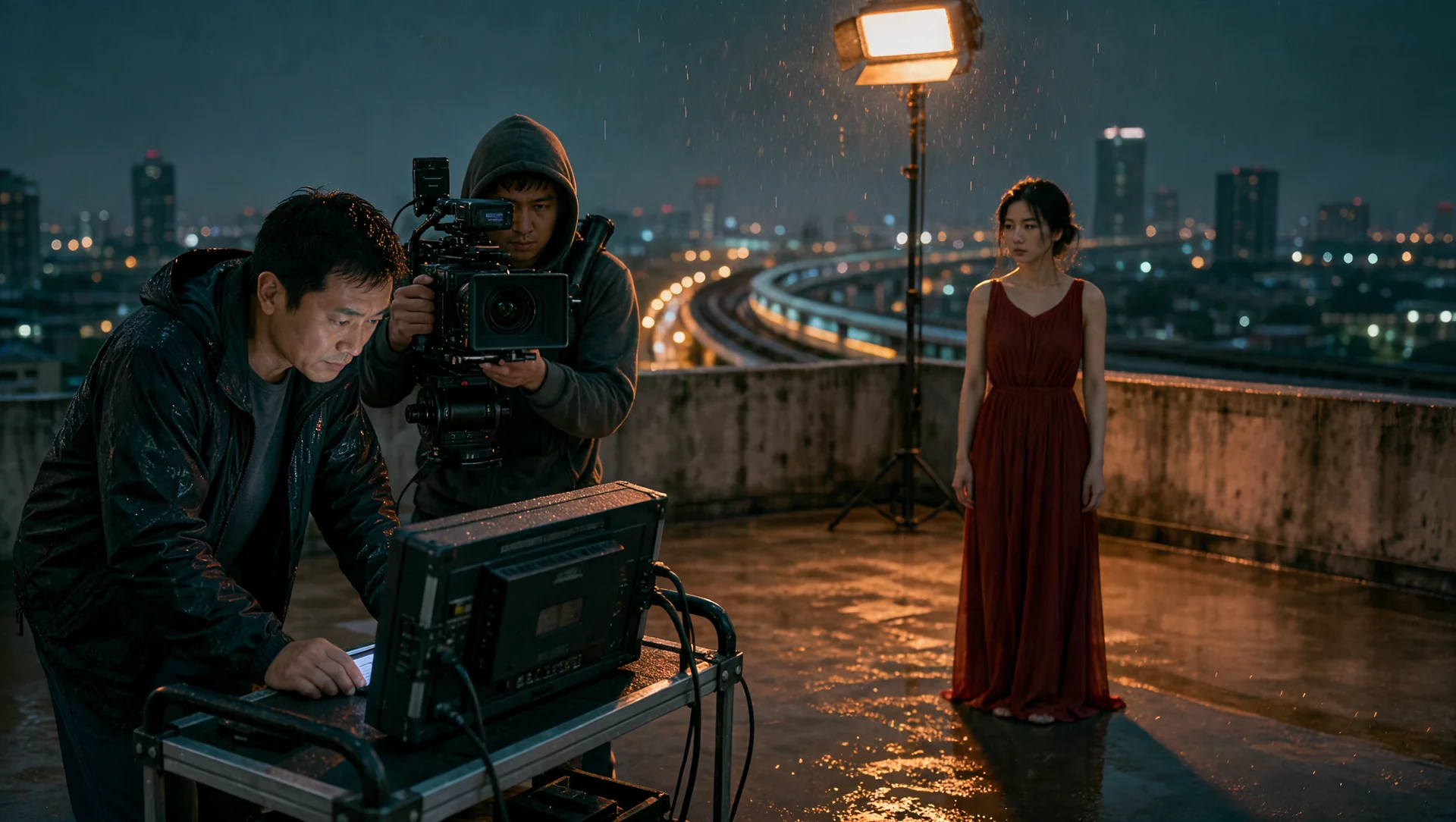
Every illustration was created with Kling Image 4.0 on Fuzion and works as a real source image for OmniHuman. The example prompts were written to match them, so you can copy and adapt them.
What is OmniHuman 2.0, and what changed?
OmniHuman 2.0 is BytePlus's film-grade lip-sync model. You provide one character image and an audio file, and optionally a prompt. What's new compared with the previous version:
Prompt support: direct gestures, camera movement and events in the scene.
No more fixed position: characters can walk, turn or stand up, and the camera can move. They no longer have to sit still and talk to the lens.
It understands the audio: characters act in line with what is being said, for example lifting up an object they mention, even without a prompt.
Nuanced emotional performance: it reads emotion from the voice and the lines, and it shines in dialogue scenes.
Multiple people in frame: choose who speaks while everyone else moves naturally.
Many styles: real people, cartoons, 3D, pixel art and animals such as cats and dogs.
What it's good for
Short dramas and film: dialogue scenes, creative ads, documentary narration and brand stories
Music videos: singers moving with the rhythm and mood of the song, with a moving camera
Fantasy vlogs: selfie-style footage with surreal events happening around the character
UGC content: cartoon characters, talking pets and creative avatars
Prepare your files
On Fuzion you need one character image and a WAV or MP3 audio file between 4 seconds and 5 minutes long. The output is a 720p video as long as the audio. The prompt is optional.
The source image
Sharper is better: the clarity of the video depends directly on the source image.
The face must be large enough: if the face is too small in the frame, the mouth sometimes doesn't move. Avoid very wide shots.
JPEG, PNG, WebP and other common formats, under 30MB, 300–6000 pixels per side, with an aspect ratio between 0.4 and 2.5.
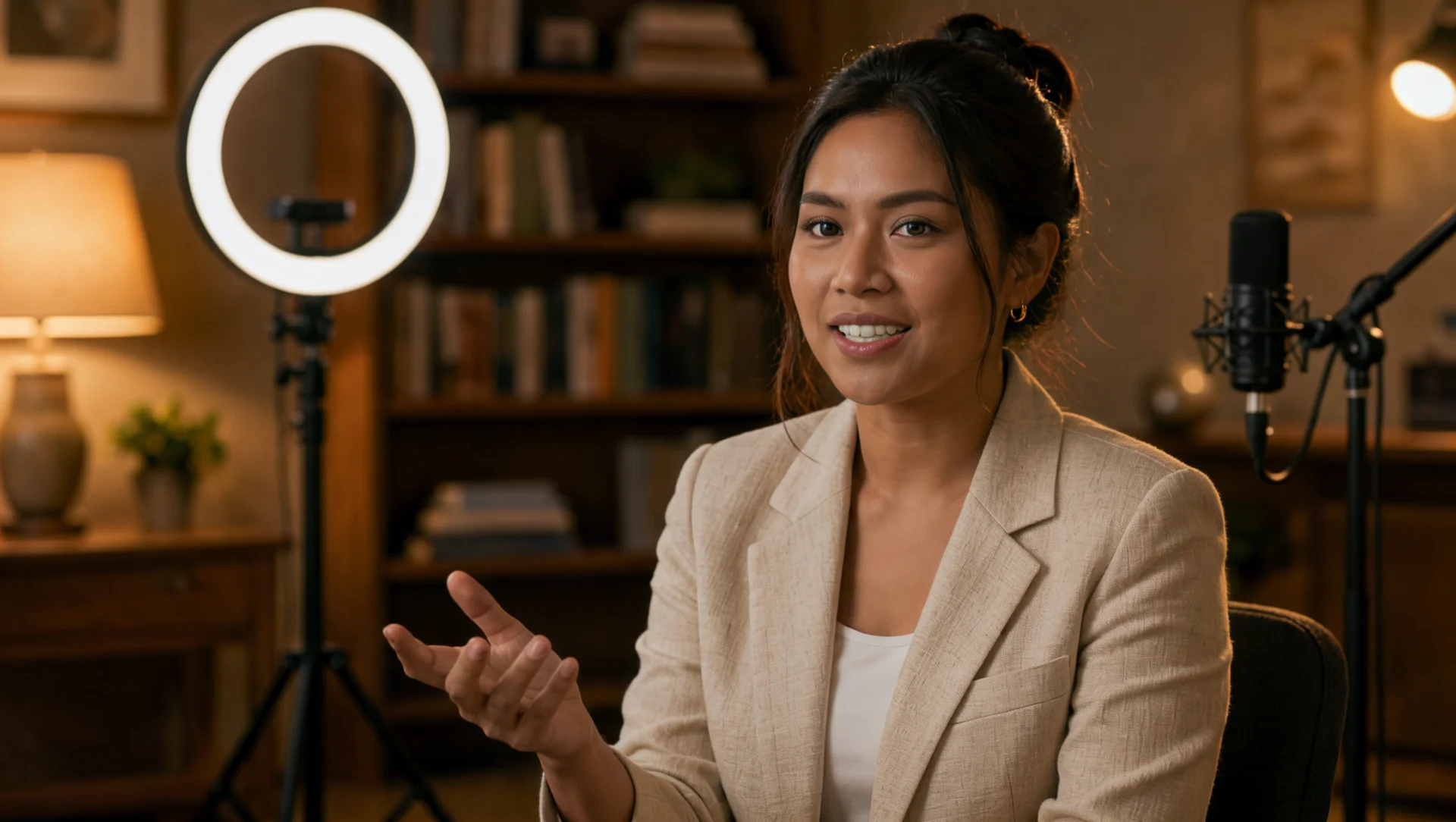
An image like this makes a great source: a sharp face, even light, eyes to camera and visible hands for gestures while talking.

The audio file
WAV or MP3, under 15MB
Clear speech, with no music or noise drowning out the voice
Up to 15 seconds is the most stable. Beyond that, the character's structure may start to drift. For longer clips, split the audio and join the results.
Three rules for writing prompts
Write it like a story: use natural, connected sentences rather than a pile of keywords.
Describe only what moves: there's no need to say what the character is wearing or their hair color, because the image already shows that.
Be clear, consistent and light on negatives: use specific wording and guide the action step by step.
OmniHuman prompts support Chinese, English, Japanese, Korean, Spanish (Mexico) and Indonesian. Write your prompt in English if your language isn't on that list. The language limit applies to the prompt, not to the audio.
A prompt formula that works
Camera movement + the speaker's emotion + their state (talking / singing / crying) + specific actions + background events or other characters (optional)
The camera slowly pushes in from a medium shot to a medium close-up. The woman is warm and confident as she talks to the camera, opening one hand to explain a point, then briefly glances down at her notes and looks back up with a smile. The practical lamps behind her flicker softly.Key tip: always include talks, speaks or sings for the character who should speak. It noticeably improves the mouth movement.
Sequence actions with "first" and "then"
Use words like first, then and finally to choreograph a sequence, and you can place gestures before or after the speaking part:
The chef first wipes his hands on a towel, then leans on the counter and talks to the camera with a proud smile. When he finishes, he quickly turns around and tosses noodles in the wok behind him.Make the camera land where you want
Describe where the camera ends up, for example the camera moves forward and settles on her face, and use words like quickly or rapidly when you want a more responsive move.
The camera quickly orbits to the right and stops on a front close-up of his face. He takes off his sunglasses and talks straight to the camera.Watch out: if a character leaves the frame for a long time and comes back, their face may change. Avoid having characters repeatedly leave and re-enter the frame.
Control emotion and expression
Describe emotional shifts that fit what's being said in the audio:
At first the man looks relaxed and talks casually to the camera. Then he suddenly freezes, his eyebrows draw together and he lowers his voice as if he has just remembered something important.Shift focus between foreground and background
When there are people or events both in front and behind, you can tell the camera to move its focus to follow the story:
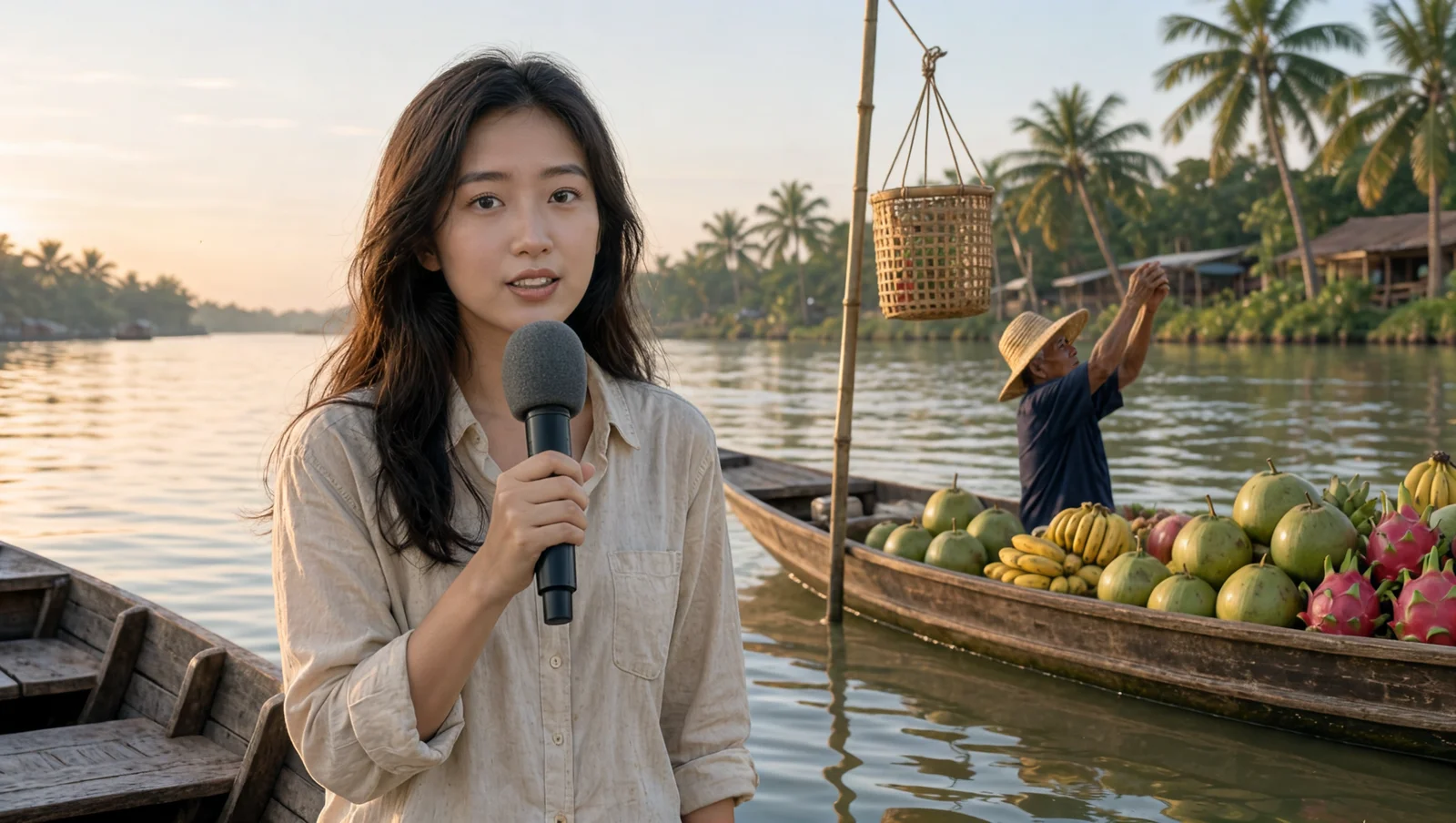
The reporter talks to the camera about the morning market. Meanwhile, behind her, the vendor in the boat drops a basket of mangoes into the water with a splash. The camera shifts focus to the vendor. The reporter turns around in surprise and keeps talking while looking back at him.Several people in frame: choose who speaks
Say clearly who is speaking by their position in the frame, then describe what the others do meanwhile:
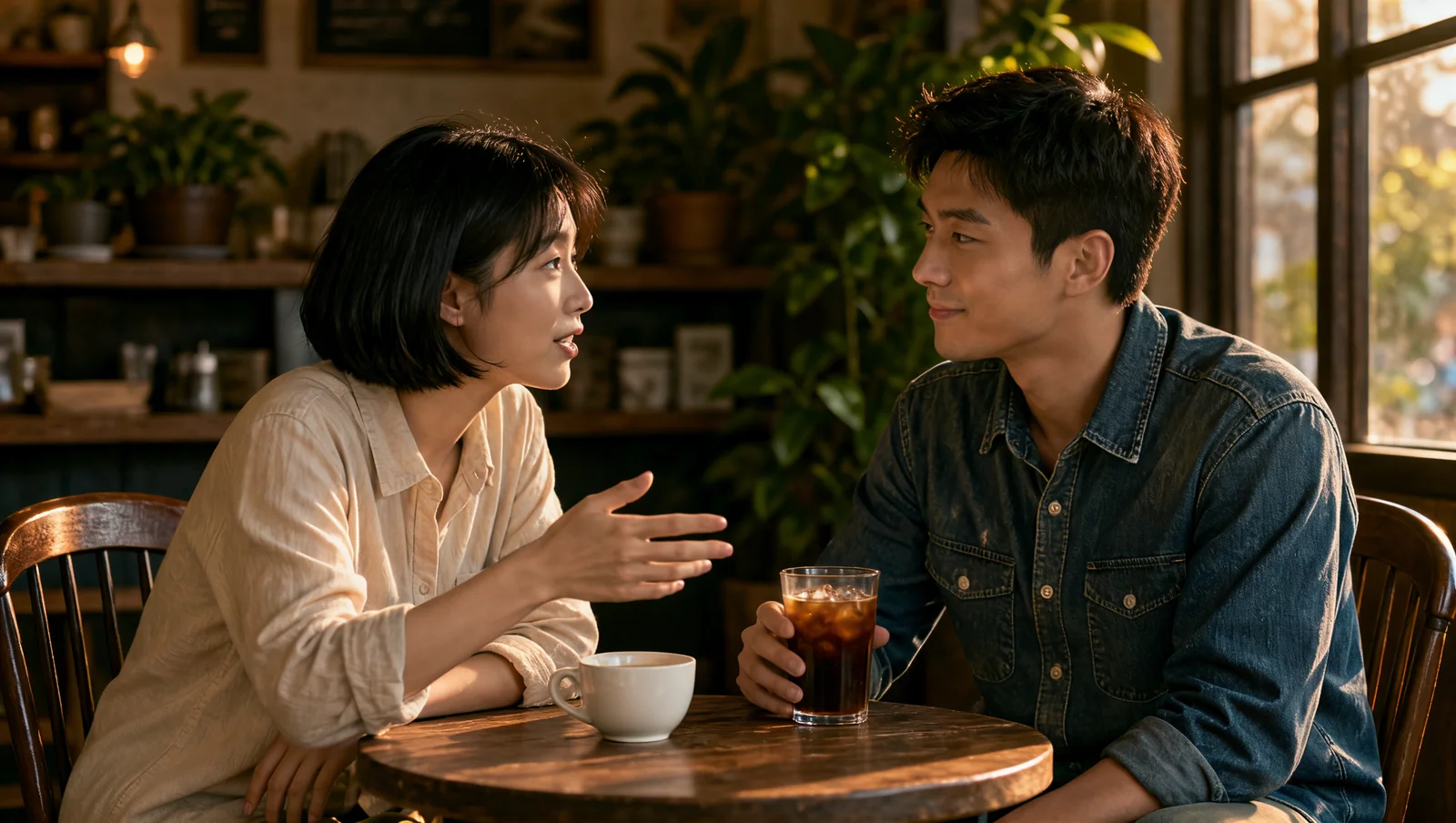
The woman on the left talks excitedly, leaning forward and tapping the table as she makes her point. The man on the right listens, nods twice and laughs quietly, then takes a sip of his iced coffee. Static eye-level camera.Animals, cartoons and other styles
OmniHuman 2.0 works with many non-human images, including animals, 3D cartoon characters and pixel art, and you can add new elements through the prompt:
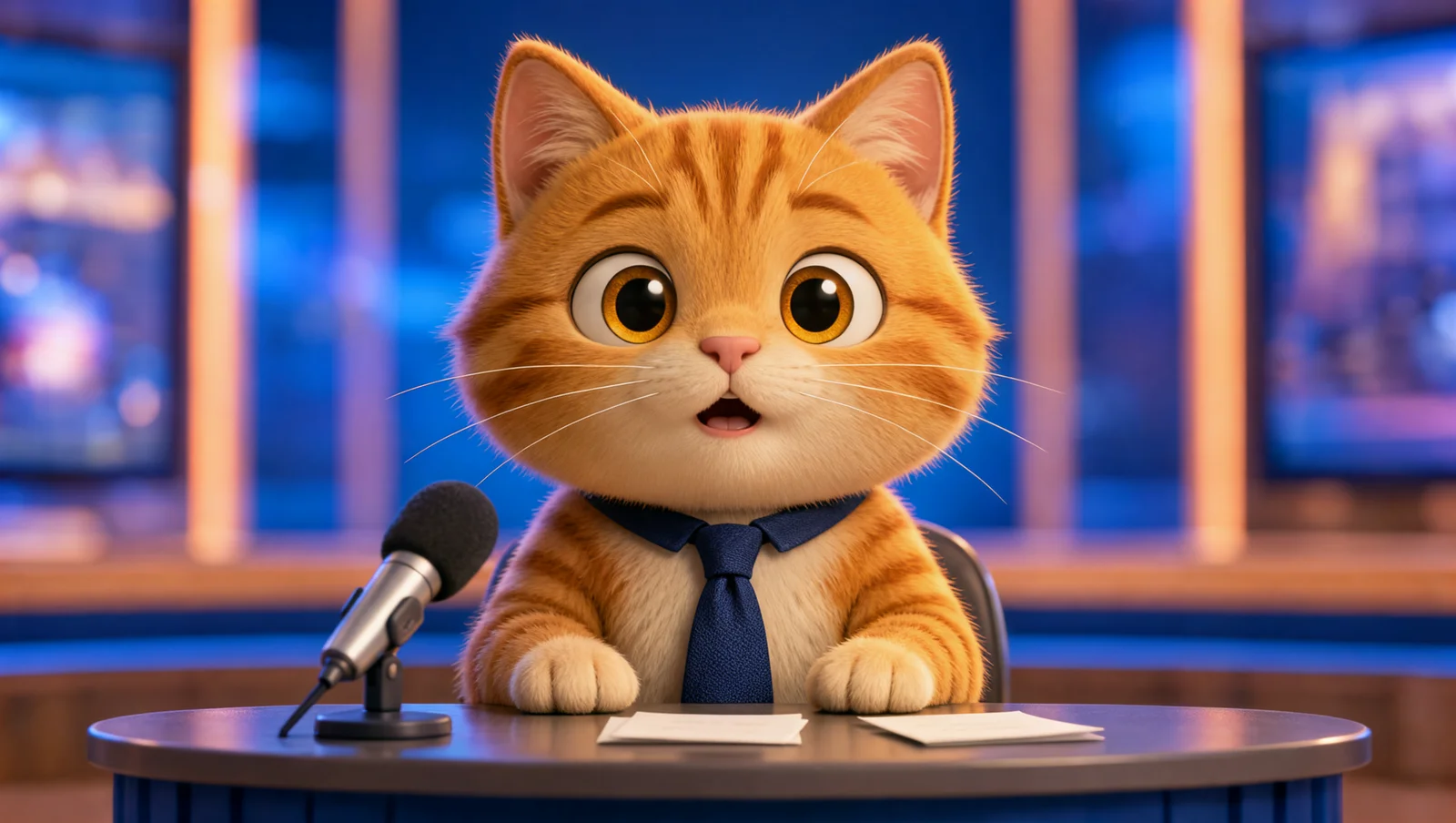
The cat anchor talks seriously to the camera like a news presenter, ears twitching. Halfway through, it glances down at a paper on the desk, then looks back up and continues talking. A small paper airplane flies past behind it. The camera slowly pushes in.Add effects and things that aren't in the image
You can bring in elements the source image doesn't have, such as visual effects or events in the scene:
She talks to the camera in a calm voice. Then the air around her begins to shimmer, soft golden petals rise from the floor and swirl around her, and the camera slowly pulls back to reveal the whole room glowing.Let the character interact with the environment
Describing how the character relates to the scene makes the video feel alive:
A gentle breeze moves her hair and the edge of her scarf while she talks, and the leaves of the trees behind her sway in the wind.Before you generate
Results vary each time: complex scenes may need several attempts.
Try without a prompt: the model understands the audio well on its own. If a prompt doesn't help, remove it.
Stay under 15 seconds for stability: split longer audio into segments.
Use only images and voices you have rights to: faces and voices must be your own or used with permission.
Checklist before you generate
The image is sharp and the face is large enough, not a wide shot.
The speech is clear and under 15 seconds for the most stable result.
The prompt is in a supported language and describes only motion.
The speaking character has "talks" or "sings".
Actions are sequenced with "first" and "then", and you said where the camera ends.
Ready? Open Fuzion, choose OmniHuman 2.0 and add your image and audio. Need a source image first? Create one with Kling Image 4.0 using this guide, and generate the voice with Seed Audio 1.0.
Frequently asked questions
Do I need a prompt?
No. OmniHuman 2.0 understands the audio and acts on its own. Add a prompt when you want to control gestures, the camera or events in the scene.
How long can the video be?
On Fuzion the video is as long as the audio, from 4 seconds to 5 minutes, but results are most stable up to 15 seconds.
Why isn't the character's mouth moving?
Usually the face is too small in the image. Use an image where the face is larger and sharper, or crop in closer.
Which languages can I write the prompt in?
Chinese, English, Japanese, Korean, Spanish (Mexico) and Indonesian. If yours isn't listed, write the prompt in English. The limit applies to the prompt, not to the audio file.
Does it work with animals or cartoons?
Yes. It supports animals, cartoon characters, 3D and pixel art, as long as the face and mouth are clearly visible.