
Seedance 2.5 Prompt Guide: References, Timestamps, Editing and Extending Clips
How to prompt Seedance 2.5 and 2.5 Flash: the four-part structure, mapping reference files, timestamps, camera language, editing and extending clips, storyboards, keyframes and fixes for common problems, with prompts you can copy.
 Fuzion
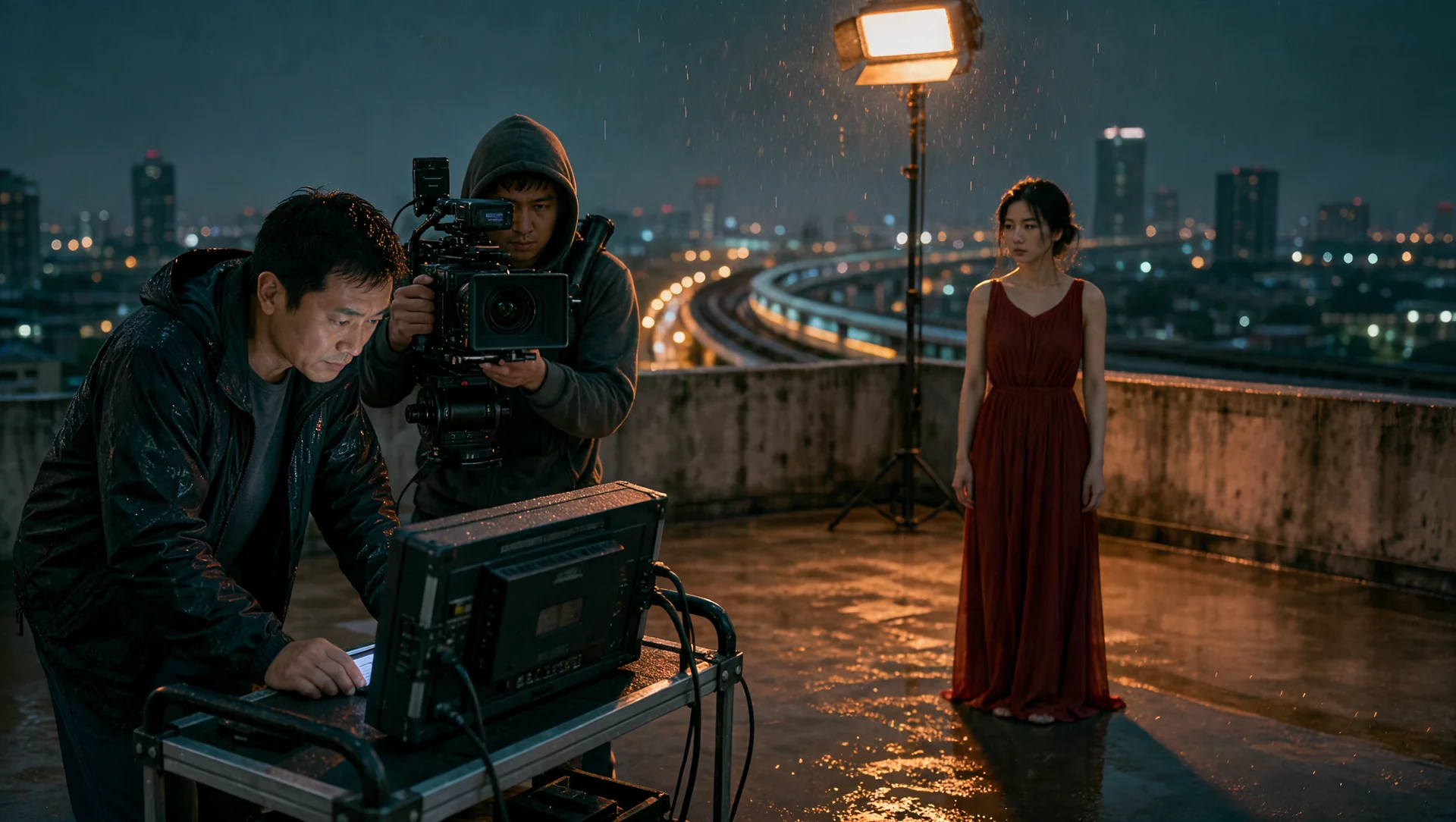
Seedance 2.5 is BytePlus's latest video model, and it follows instructions far more precisely than before. A single clip can run up to 30 seconds, it generates native speech in more than 10 languages, and it adds professional tools such as video editing and clip extension. This guide sums up how to write prompts that work on Fuzion, from the basics to advanced techniques, plus fixes for the most common problems.
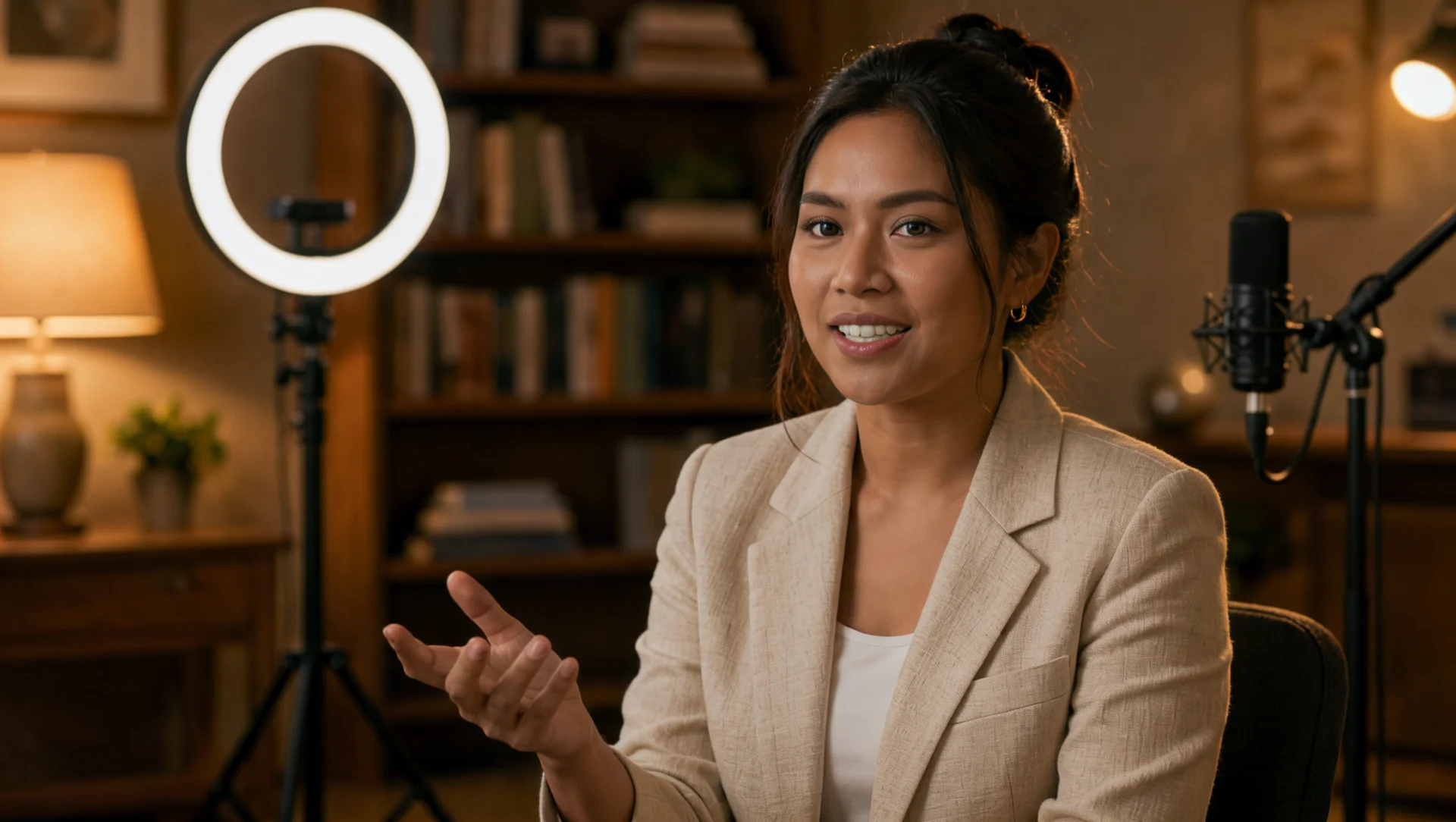
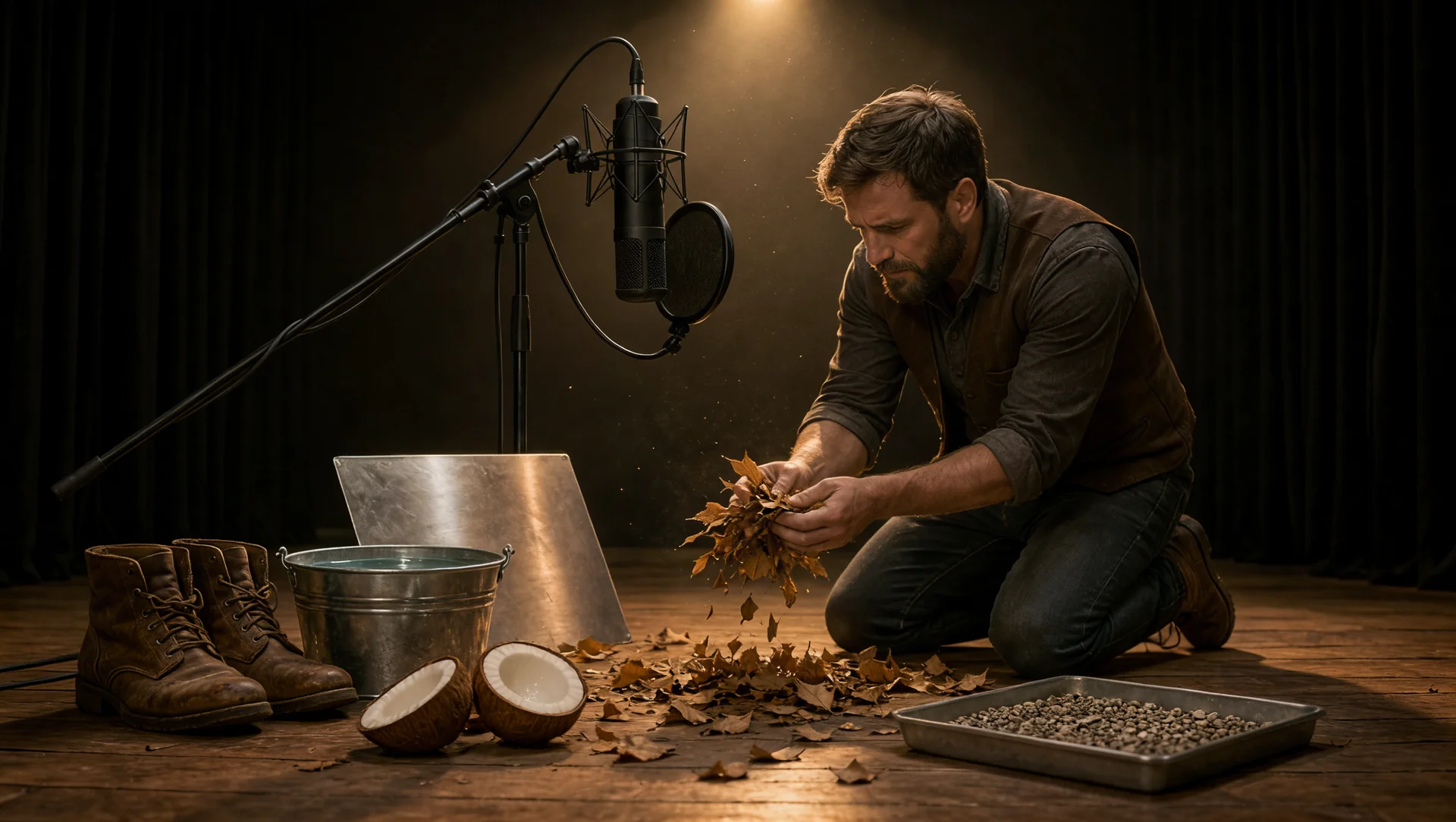
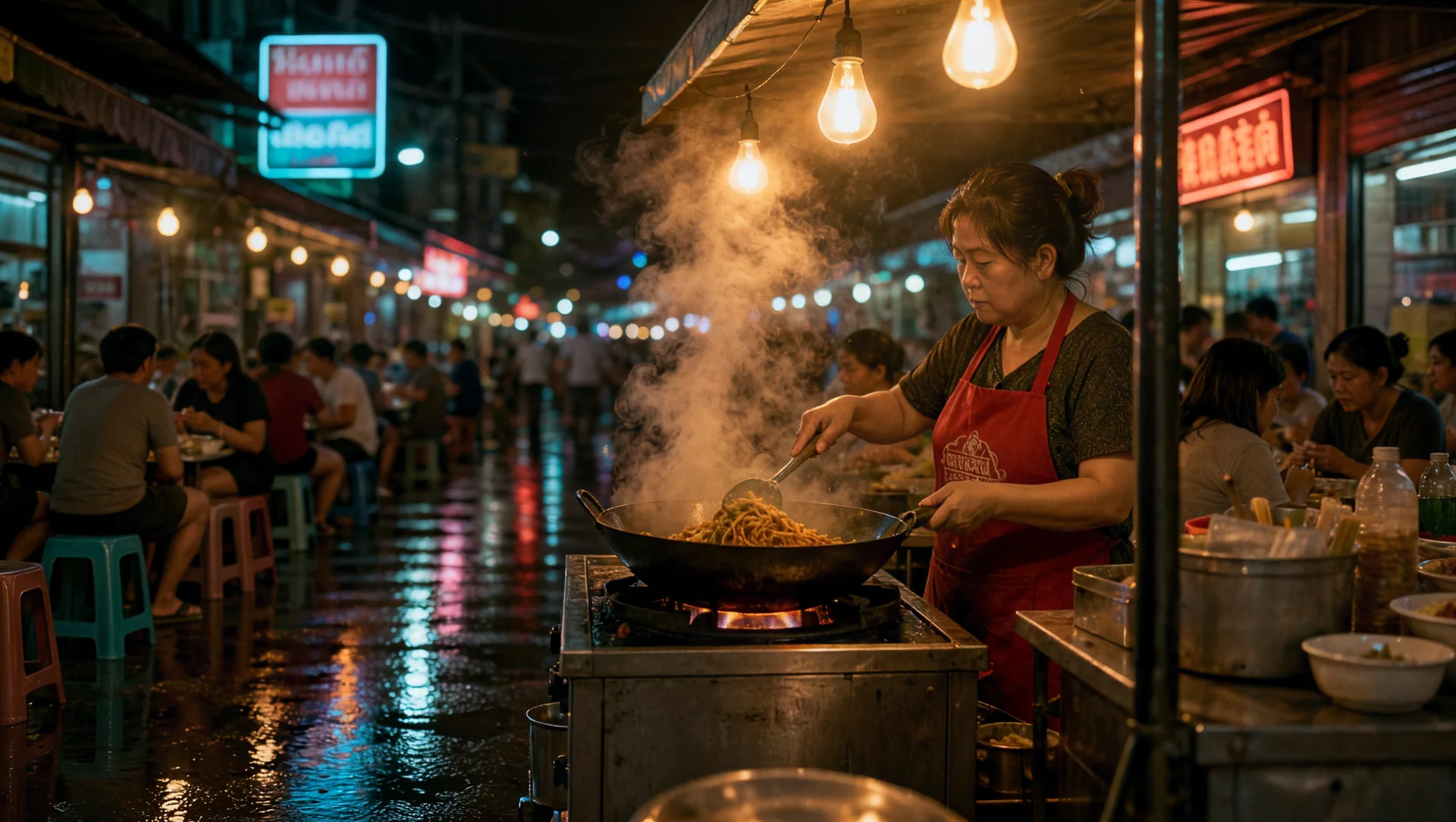
The illustrations were created with Kling Image 4.0 on Fuzion, and every example prompt was written fresh to match them, so you can copy and adapt them.
Seedance 2.5 vs. 2.5 Flash
Fuzion offers both. Each creates clips of 4–30 seconds with native audio, in 16:9, 9:16, 1:1, 21:9, 4:3, 3:4 or adaptive.
Seedance 2.5: 480p up to 4K, with up to 30 images, 10 videos and 10 audio files as references
Seedance 2.5 Flash: faster and cheaper, 480p–720p, with up to 10 images, 5 videos and 5 audio files
Not sure a prompt will work? Turn on Draft mode in Seedance 2.5 to render a 480p preview first. It works in Reference and Keyframe modes, and if you like the result you can upgrade it to 1080p from the history menu.
The four modes on Fuzion
Reference (default): add images, videos and audio as references, such as a character's face, a motion, a style, a voice or a storyboard
Keyframe: provide a first frame, and optionally a last frame
Edit (2.5 only): edit one existing 4–30 second clip by adding, removing or changing what you see and hear
Extend: continue an existing clip forward or backward
Locked vs. unlocked tasks
This is new in 2.5 and it matters. Some tasks lock the aspect ratio (and sometimes the duration) to your input file, because that file is placed directly on the output timeline.
Locked: Edit, Keyframe (first/last frame) and Extend. The ratio is adaptive and follows the source; in Edit, the duration also matches the clip being edited. If you supply both a first and last frame, use the same aspect ratio for both, or the image will be stretched.
Unlocked: all Reference tasks, including storyboards and multi-image keyframes. The files are only semantic references, so you set the ratio and duration yourself.
An Edit prompt should contain a clear editing instruction such as add, remove, replace or change to. An Extend prompt should use words like extend forward, extend backward or continue.
A four-part prompt structure
Treat Seedance 2.5 as a production crew and write your prompt as a shooting brief in four parts:
Asset mapping: which file is who, and what it's a reference for (skip if you have no files)
A one-sentence summary: who + where + what happens + style + camera movement
A detailed plot: split into time ranges or shots, and describe the visuals, camera, action, dialogue and sound in each
What stays constant: camera angle, environment, atmosphere, sound
A 10-second example with no reference files:
Realistic documentary style. At dawn on a misty river in central Thailand, an elderly fisherman in a faded blue shirt and a woven straw hat rows a wooden longtail boat, then pulls in his net and lets a small fish go.

The river is calm, thin mist floats on the water, palm trees stand on the far bank, and soft golden light comes from the left of the frame. The camera stays on a gentle handheld track from a second boat, always keeping him in frame.

0s-3s: Wide shot. He rows slowly through the mist; ripples spread from the oar.
3s-6s: Medium shot. He stops rowing, leans over the side and pulls a dripping net into the boat.
6s-8s: Close-up of his weathered hands holding a small silver fish that flashes in the first sunlight.
8s-10s: Medium close-up. He smiles to himself and lowers the fish back into the water.

Natural sound only: water lapping, the oar, distant birds. No BGM. No subtitles.
Mapping many reference files without confusion
The more files you add, the more the mapping matters. Refer to files in upload order, such as Image 1, Video 1, Audio 1, and bind each one to a role in the text.
Map in the text, not on the image. Don't write a character's name on a picture and expect the model to connect it; that often swaps or duplicates characters.
List multiple characters, for example
Images 1-2 are the rider and use the voice in Audio 1; Image 3 is the shop owner and uses Audio 2.Say which part to reference, for example
Use only the camera move from Video 1orUse Image 4 for the lighting and color grade only.Don't re-describe an accurate reference. If the reference video already contains the motion,
Follow the motion and camera move of Video 1 exactly.is enough.Upload files in the order characters first appear. It reduces characters getting swapped.
Seedance 2.5 now supports multi-view images of the same character (2.0 did not recommend them). A good character sheet has one close-up of the face so the model can lock the identity, plus full-body front and back views for the outfit, bag and gear. With full-body views alone the face is too small to read, so it tends to drift in the clip:
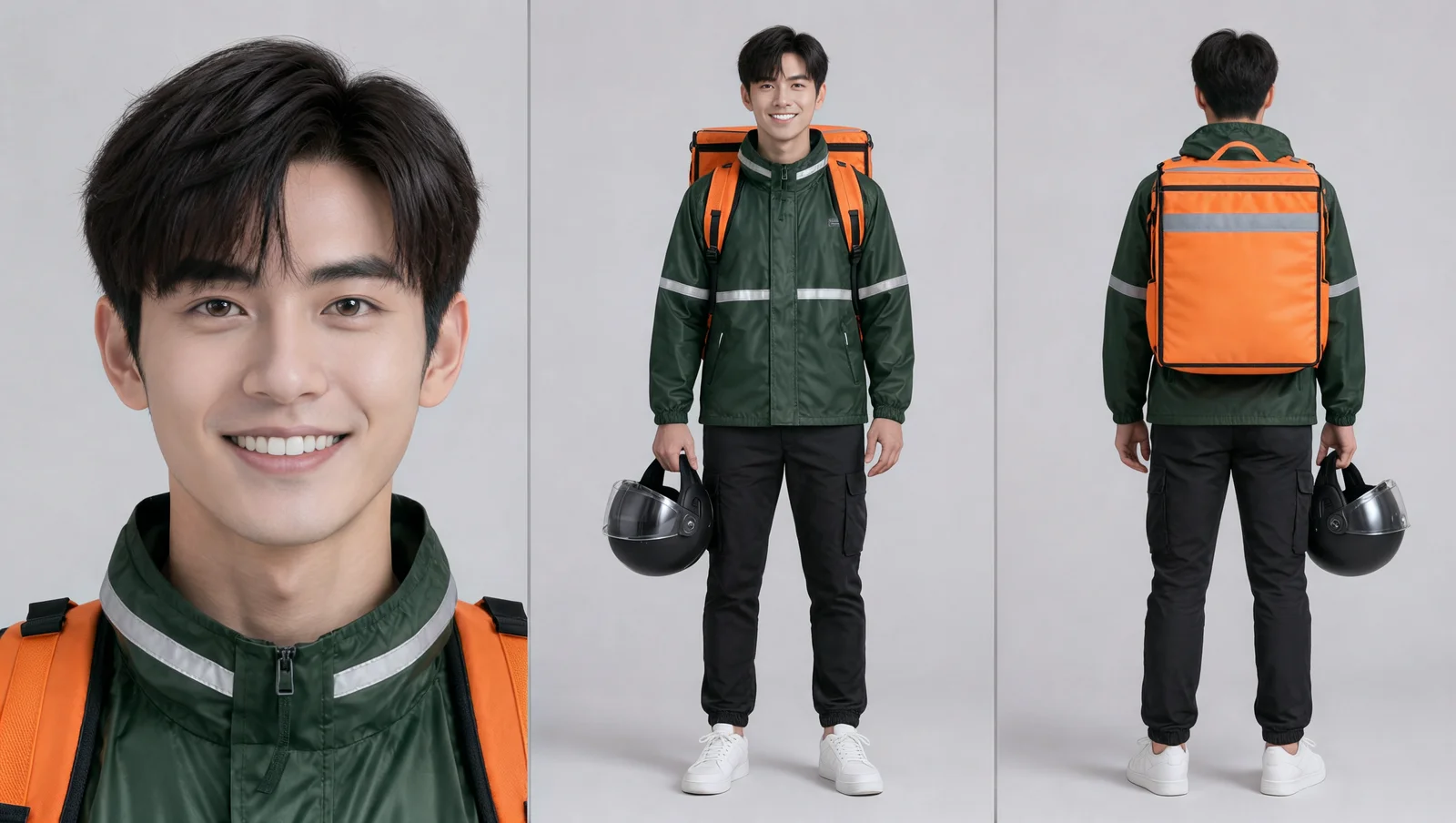
Image 1 is the delivery rider: a close-up of his face on the left, then full-body front and back views of the same person. He rides a scooter through a Bangkok soi in light rain, stops at a shophouse, takes off his helmet and hands a food bag from his orange backpack to the camera with a smile. Keep his face exactly as in the close-up, and his green rain jacket, orange backpack and black helmet exactly as in Image 1 throughout. Medium shot tracking from a scooter beside him, then a static medium close-up at the door as he hands over the bag. Street ambience and rain sounds, no BGM, no subtitles.How many reference files work best?
Characters from images: 1–8 work well; 9–12 can work but may need retries. Above 5 characters, one view per file is more stable.
Characters from video or audio: 1–5 work well, with each file around 5–10 seconds.
Video editing: clips under 20 seconds are the most stable, with 1–5 supporting reference images.
Use timestamps to control pacing
Seedance 2.5 now understands timestamps in whole seconds (2.0 only understood "Shot 1, Shot 2"). There are three ways to write them:
Continuous ranges, such as
0-3s ... 3-7s ... 7-12sor[0s-4s] ... [4s-8s]. Don't leave gaps like 0-3s followed by 5-6s.Time points, such as
At the 4-second mark, the lights in the shop go out.Relative timing, such as
He waits. Two seconds later, the door opens.
Two cautions: if a range has too little going on, the model improvises; if you pack too much in, you get rapid cuts or skipped beats. And don't use timestamps for fast, repeated actions like "nod three times per second".
Negative instructions work only for subtitles and audio
In general, describe what you want rather than what you don't. The exceptions are subtitles and audio, which you can rule out directly:
No subtitles.No BGM. Only ambient sound and action sounds.No audio.
Camera language, action and expression
Basic camera terms work as written: shot sizes (extreme wide, wide, medium, close-up), movements (push in, pull out, pan, tilt, track, orbit, handheld) and angles (low angle, overhead, first-person), plus techniques like long take, dolly zoom, FPV, bullet time and speed ramp.
Explain niche terms after naming them, for example
Rack focus: the focus slides from the rain on the window to her face behind it.For transitions, give both timing and method, for example
At the 6-second mark, whip pan to the right into the next scene.Actions: describe the overall action first, and add detail only for the moments you want remembered. Don't repeat the same action.
Expressions: use descriptive sentences instead of idioms or metaphors.
Editing an existing clip (Edit)
State clearly what changes, when, and from what to what, and say that everything else stays the same.
Edit Video 1: from 3s to 6s, change the man's action from reading a newspaper to pouring tea into a cup. Keep everything else unchanged.Edit Video 1: replace the woman on the left with the woman in Image 1. Keep her dialogue, timing and the camera move unchanged.Edit Video 1: remove the background music and keep the dialogue and street sounds.Complex jobs that combine many references and edits at once tend to be unstable. Split them into several tasks: for example, create an element with a Reference task first, then use that result as a reference in an Edit task.
Multi-panel storyboards
You can add a storyboard with several panels in one image to outline the plot, but the model won't follow every panel exactly. The storyboard is a high-level guide. Keep in mind:
Use 15 panels or fewer; more can produce still frames or a wrong order.
Use simple line art with no text on the image, and avoid cluttered or over-sharpened AI storyboards.
In the prompt, map the files, summarize the story, then fill in what the panels don't show: actions, camera and style.
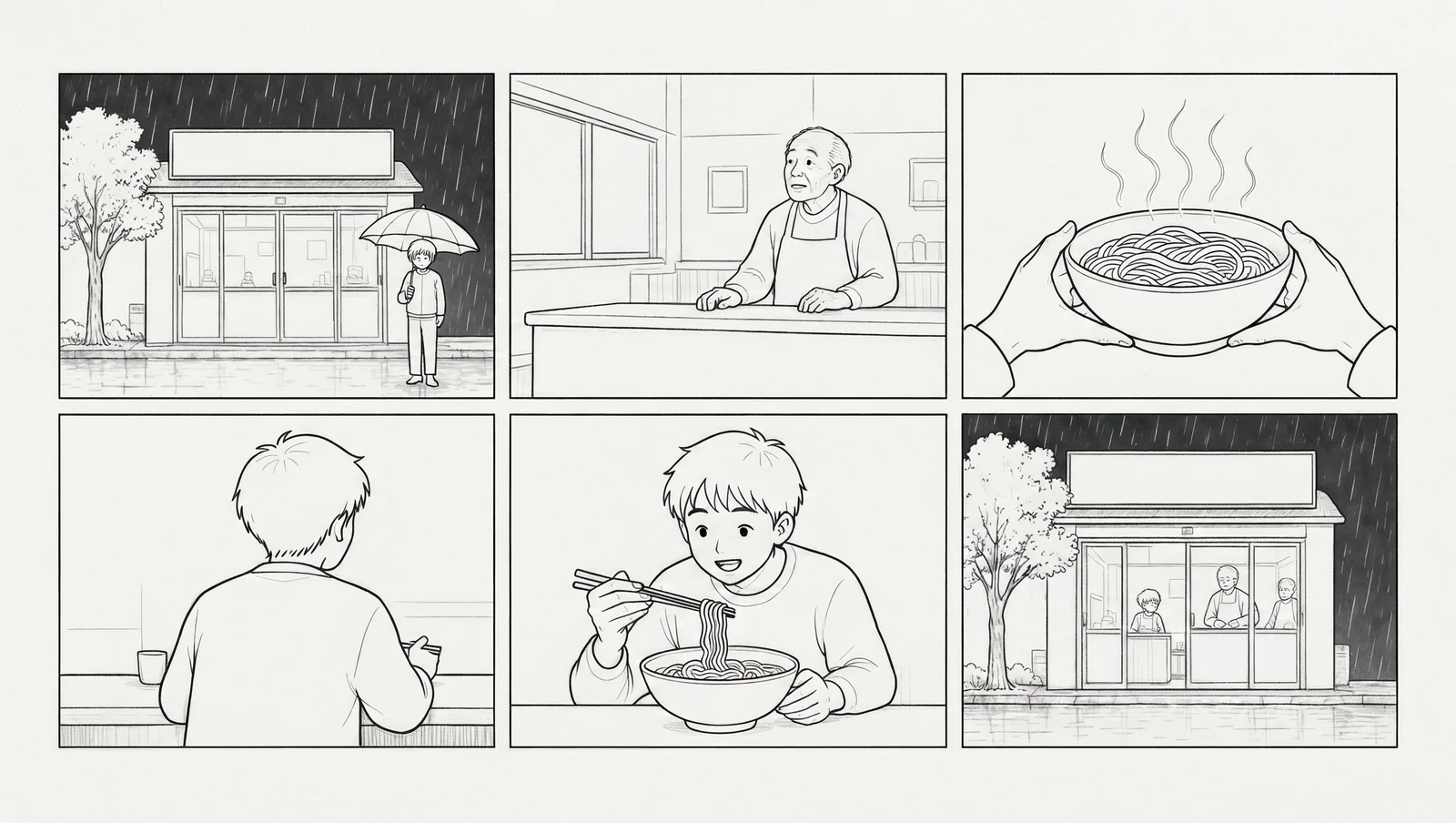
Image 1 is the storyboard. Follow its six panels in order to tell one short story.

Style: warm, realistic Thai indie drama, 35mm film look, soft practical lights, rain outside.

Shot 1 (0-3s): Wide shot of a small noodle shop at night. A boy in a wet school uniform stands outside in the rain, looking in.
Shot 2 (3-5s): Medium shot. The old owner looks up from the counter and waves him in.
Shot 3 (5-7s): Close-up. The owner sets a steaming bowl of noodles on the counter.
Shot 4 (7-9s): Over-the-shoulder shot. The boy sits down and picks up the chopsticks.
Shot 5 (9-11s): Close-up. The boy smiles as steam rises from the bowl.
Shot 6 (11-14s): Wide shot from outside the window, the two of them in the warm shop while rain falls on the street.

Rain, a simmering pot and quiet street sounds. No BGM. No subtitles.
Keyframes, when the frames must match
When the video must match the frames you designed, add each scene as a separate image in order, and open the prompt by saying which images are the keyframes. The result stays much closer to your images than a combined storyboard.
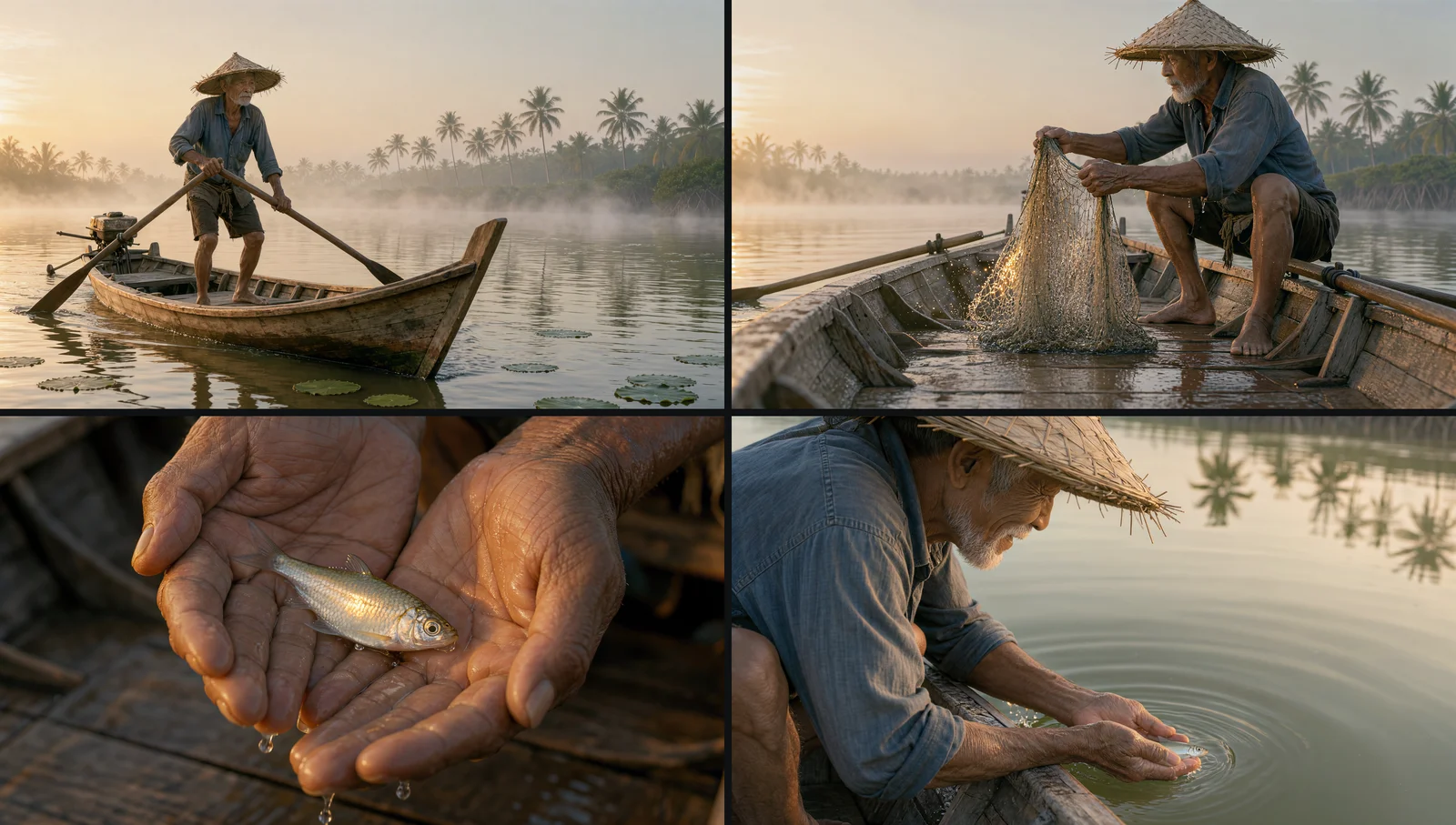
Use Images 1 to 4 in order as keyframes. At dawn on a misty river, an elderly fisherman rows his longtail boat, stops to pull in his net, holds up a small silver fish that catches the first light, then smiles and lets it go. One continuous, calm scene with a slow handheld camera from a second boat. Keep his face, shirt and straw hat consistent with the images. Natural river sounds only, no BGM, no subtitles.These keyframes were made with Kling Image 4.0's Series mode, which keeps the character identical across images. See how in the Kling Image 4.0 guide.
3D clay-model references
If you block out motion and camera in a 3D program, you can use that rough clip as a motion reference. The rougher, the better: use simple geometric shapes for people, animals and objects.
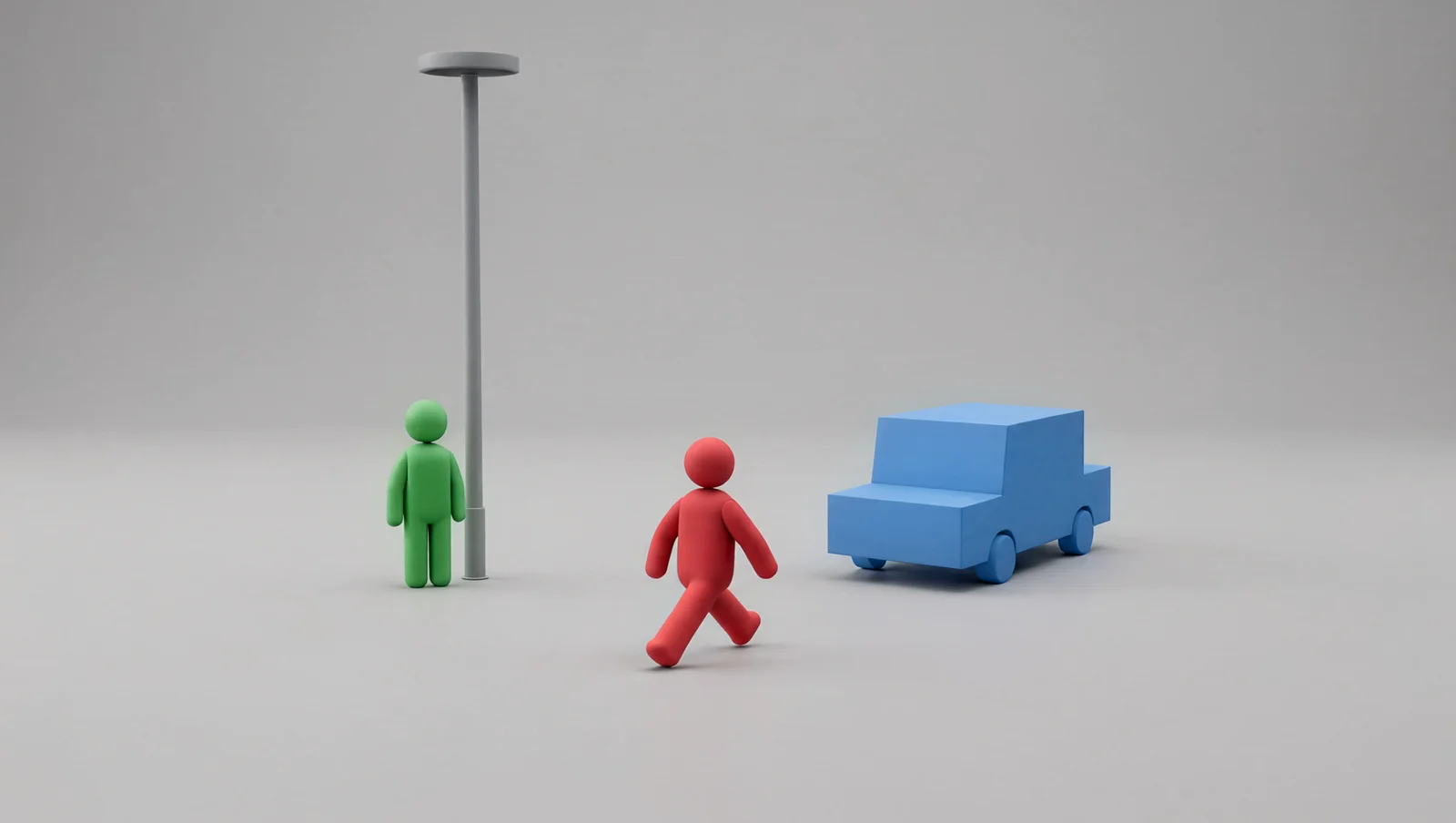
Use Video 1 for the camera move, character positions and motion only, not its lighting. Map the man in Image 1 to the red figure and the woman in Image 2 to the green figure. Replace the blue box with a white vintage car and the grey cylinder with an old street lamp.

Night street in Bangkok's old town after rain. The man runs toward the car while the woman waits under the street lamp; as he reaches the car he turns back to look at her. Realistic cinematic style, wet road reflections, warm lamp light. Keep both faces consistent with Image 1 and Image 2. No subtitles.
Say exactly what to take from the clip (camera, motion, positions, and whether to include lighting), map each model color to a character, and still describe the scene you want in detail.
What's different from Seedance 2.0
Timestamps: 2.5 understands seconds; 2.0 only understands shot order.
Multi-view images: 2.5 accepts multi-view character images as references.
Flexible aspect ratios: 2.5 supports a wider range of ratios driven by your inputs (roughly 0.4 to 2.5).
A different look: the same prompt can produce a noticeably different style. To keep the 2.0 look in a 2.5 workflow, use a 2.0 clip as the source of an Extend task.
Common problems and fixes
Glowing eyes
Intense emotional words can make a character's eyes glow blue or red. Add normal human eyes, no glowing eyes and swap words like "fanatical" or "extremely shocked" for neutral ones like "amazed".
Characters mismatched with their references
Upload files in the order characters first appear, and update the Image and Audio numbers in the prompt to match.
Misspelled text in the video
Split the word into individual letters and ask for them to appear in sequence, or render the correct text as an image and add it as a reference. The second method works well for non-English text.
Subtitles appear even when ruled out
This is much rarer in 2.5 but can still happen. Don't repeat words from the dialogue or attach tone notes in the middle of a line. Use the format Name's line (emotion): "..." on separate lines, and check that your reference videos don't contain subtitles.
Edited clips come out slightly shorter
Edit tasks can lose about 0.3 seconds. If you need an exact length, use Reference mode and set the duration yourself (the visuals may differ more from the source).
JPG uploads fail
Some JPG files use a non-standard color sampling format. Convert them to PNG and upload again.
Checklist before you generate
Is the mode right (Reference, Keyframe, Edit, Extend), and do you know whether it locks the ratio?
Is every reference file mapped to a role in the text?
Is there a one-sentence summary?
Are the timestamps continuous and not overpacked?
Did you set subtitle and music instructions?
Did you test with a 480p Draft first?
Ready? Open Fuzion, choose Seedance 2.5 and start from any prompt in this guide. Specs and pricing for every model are on the models page.
Frequently asked questions
How long can a Seedance 2.5 clip be?
A single clip can be 4–30 seconds, on both 2.5 and 2.5 Flash.
Can I write prompts in other languages?
You can, but visual and camera directions written in English tend to be more accurate. Put spoken lines in quotes in the language you want the character to speak, since the model supports native speech in many languages.
What's the difference between a storyboard and keyframes?
A storyboard combines several panels in one image and gives a rough outline, leaving the model room to interpret. Keyframes are separate images per scene, and the result stays much closer to them.
Why can't I choose the aspect ratio in some modes?
Edit, Extend and Keyframe lock the ratio to the source file, because that file becomes part of the output. Reference mode lets you choose freely.
What is the maximum number of reference files?
Seedance 2.5 accepts 30 images, 10 videos and 10 audio files; 2.5 Flash accepts 10 images, 5 videos and 5 audio files. In practice, fewer files with clear roles give more stable results.